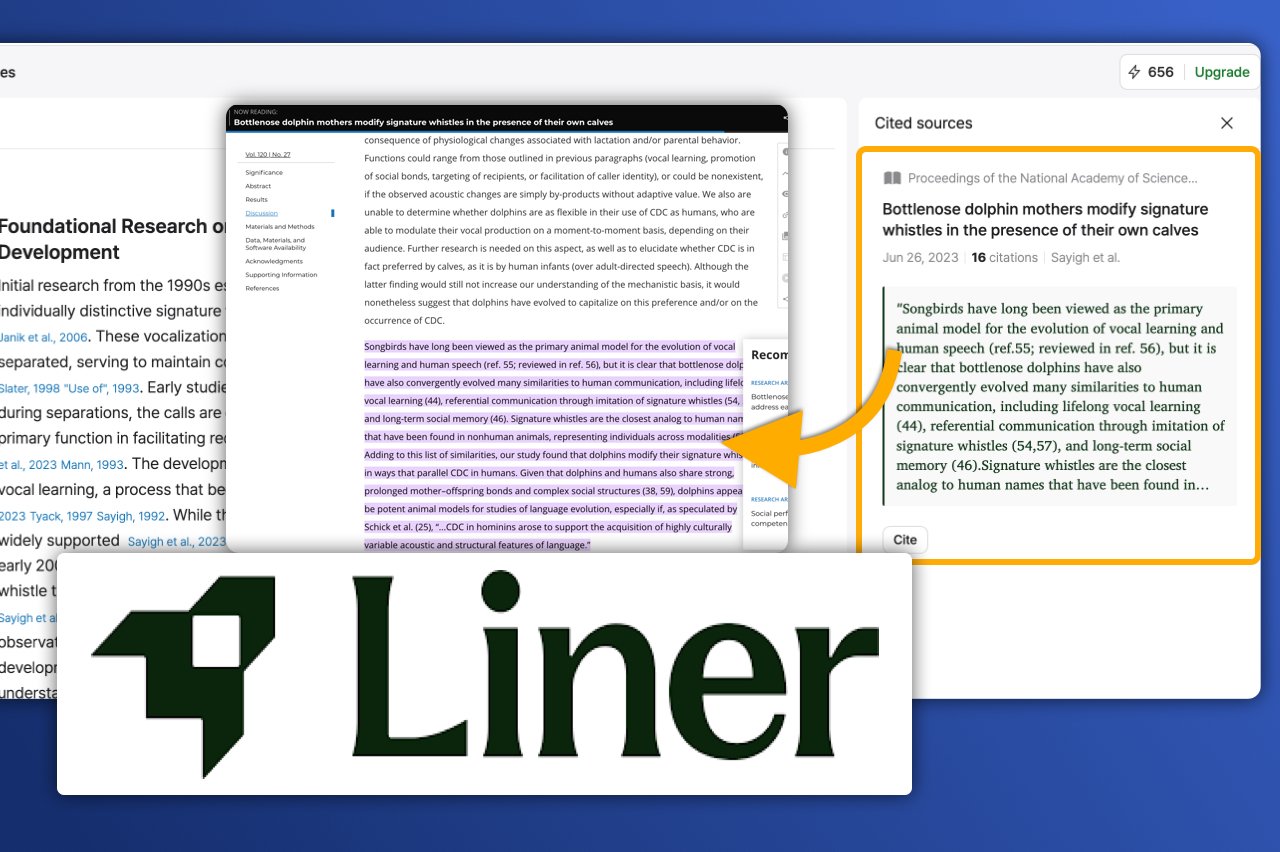
Managing a new research project can often be messy, involving dozens of different tools to help you conduct literature review, take notes, understand your topic, analyse data and write up results. Very few tools exist that allow you to implement all of these steps from one place, but Liner is one of them. In this in-depth review, we’ll look at using Liner Scholar to go from project idea to first draft, all within the same environment. If you’re tired of switching between tools, and want a single place to build out your research project, then read on!
Learn which tools can speed up your research: This free 21-day email series introduces you to a range of academic tools and how they work together to speed up the time needed for a literature review. Most of these tools have been around for less than a few years, some use AI. Knowing them gives you an almost unfair productivity advantage for your research.
What is Liner?
Liner Scholar is an AI-powered research tool designed to assist with various stages of the research process including finding papers, literature review, hypothesis generation and evaluation, data analysis, and writing. It’s set up as a suite of different services, available as unique “Research Agents”. These are AI agents, which are distinct from traditional generative AI (i.e. ChatGPT) in that they execute your query over multiple steps to get more precise results.
How Liner Works (and How It’s Different From ChatGPT)
Liner Scholar is a specialised AI-powered tool for researchers, students and academics, with specific features that aid in different parts of a research project. It offers both chat-like interfaces, as well as button-click features. Traditional generative AI models (think ChatGPT, Claude, Gemini, etc.) answer queries promptly, based on the information given. In order to tailor the response, you need to submit another query. For example, you may ask ChatGPT to review and provide suggestions for a research paper you have. After getting back the response, you may ask it to tailor the suggestions to focus on the context with respect to a certain question you have. Liner, on the other hand, can use AI to run multi-step queries. Not only does this save time going back and forth prompting, but it also means that the AI can solve more complex problems requiring step-by-step solutions.

Is Liner Scholar an Academic Tool?
Although Liner used to be a more general AI tool, it’s since pivoted to focusing on the unique challenges of researchers and academics. For at least a year now, it can be classified as an AI academic tool, with many features dedicated to assisting in the research process.
Academic Project vs Academic Paper (Why It Matters)
In this guide, we’re examining how to go through the key steps of an academic project using a single tool. However, it’s helpful to step back and think about the difference between an academic research project and an academic paper. In reality, writing a paper is just one of the many steps within an academic project. A research project involves the many steps leading up to (and happening after) the paper can be written: forming a hypothesis, gathering data, conducting a literature review, analysing data, and, of course, bringing it all together into a paper.
Usually, we need to combine many different tools and workflows in order to manage an academic project. That’s true whether you’re working on a single manuscript, or writing your entire PhD thesis. That’s why this workflow using Liner is special; we can get more steps done in one place, saving time switching between tools.


How to Manage a Research Project Using Liner Scholar (Step-by-Step)
Let’s dive into the Liner Scholar application, looking at what features it offers for each step of a typical academic research project. We’ll go through an example project, and see how well it performs, as well as how it may integrate into the rest of a broader research workflow.
Step 1: Create a Research Project in Liner Scholar
To get started, we’re going to set up a new project in Liner Scholar, the project-based environment of Liner.
- Log into Liner Scholar (or create an account)
- Click the + (plus) sign in the left sidebar to create a new project.
- Click “Untitled” at the top, and rename the project.
Projects in Liner allow you to stay organised and keep track of your writing, references, and data within a single location.
From here, you can upload PDFs of papers you already have, as well as any other relevant files. We’ll look more at uploading data and analysing it in the next couple of sections.

Step 2: Literature Review and Finding Papers
Now that we’ve set up a new project, we can start exploring our topic within Liner. We can bring in any papers we already know, or use Liner to search from scratch for relevant references. Here, there are a few different features we can use:
- Citation Recommender
- Literature Review
- Research Tracer
Although we’ll get back to the new project we just set up, the next few examples happen within the Liner’s AI agents and not within the project. If you discover relevant papers in the next few steps, be sure to save them to your reference manager or download their PDFs to be used in your Liner project later.
Explore a New Topic from Scratch
If you’re starting a project from scratch, you may not yet know any papers on your topic. At this early stage, Liner has a useful feature to discover literature on your topic, aptly calledLiterature Review. The Literature Review agent simply uses a basic prompt input (“run a literature review on topic…”).
This is a good starting point for diving into a new topic and efficiently finding the first few papers for a literature review. To use this:
- Go to the Liner application homepage
- Click “Literature Review” under Liner Scholar in the sidebar
- Prompt with your research question or topic
Liner will then run a mock literature review, and display the steps of the process in the sidebar. Below you can see the various search phrases Liner used, the papers collected, the plan for constructing the lit review, and the final draft.

The literature review that Liner generates is a full-text review of the topic, with in-line citations. What’s particularly helpful here is that every line of text is cited, and these citations can easily be explored in more detail. Moreover, the citation is given along with the relevant quoted text. Clicking on it will take you to the paper’s online source (if available) with that text highlighted. This makes it easy to back-track why certain citations were given, so you can immediately see how they’re relevant to your topic.

Use Project Tasks to Find Related Papers
As your project gets underway and you’ve made some progress in your literature review, you’ll likely be at the stage of needing to dive deeper. By now, you’ll likely have a few papers on your topic, but need to hone in on specific methods, ideas or studies in more detail. For this, you can use Liner to find papers related to ones you already know.
Here, we show how this works with a single PDF upload, and prompt Liner to discover work based on that research paper and our query. You can do this for any number of papers you already know, by uploading all of them to your project.
Keep in mind, you can also use “Find related papers” to search from scratch, without uploading any papers either.
To find research papers on your project in Liner Scholar:
- Navigate to your Project
- Optional: Upload any papers you have so far on your topic
- Open the chat and click Tasks -> “Find Related Papers”
- Optional: Filter by field, publication date, and the number of citations you expect articles to have
- Some text will be auto-generated (“Organize a table of papers related to the following:”). Add to it by explaining your research question. Run the search using this prompt and your uploaded papers as context.
After hitting enter, Liner will begin searching for relevant literature. You can see it “thinking” step-by-step and how it searches different databases. In the image below, you can see how it found 1 PubMed paper, then it kept “thinking”, and found additional papers from other databases.

You’ll see the paper recommendations in a table breakdown. This will look familiar if you use other AI search platforms for research like SciSpace or Elicit. However, what sets Liner apart is the column “Selection rationale” which explains why the AI selected this paper. For example, in the search above, the first paper’s rationale clearly states “The most directly relevant recent paper: demonstrates that…” with an explanation of how it addresses the precise research question I’m exploring.
You can also pinpoint relevant papers faster by adding a custom column to sort on a particular concept, method, population, etc. There are also an additional set of pre-calculated columns you can add like Result, Method, Conclusion, and Summary. To add any of these or a custom criteria, simply click “+Add Column” at the top of the results.

Using Research Tracer to Expand a Literature Review
In addition to exploring papers through prompts, you can also discover literature visually with Liner. All publications are connected via citations and references, and discovering relevant papers through these connections is a powerful and efficient way to find related literature. Of course, sorting through all the citations and references of any single paper is incredibly time-consuming. For this reason, we use citation-driven searches. You may be familiar with ResearchRabbit, Litmaps or Connected Papers, which do exactly this. Liner also offers a visual, citation-driven search.
Research Tracer will show a visual outline of any given paper and its citations and references. It provides a “multi-generational” view, letting you see the citations of citations, extending in both directions.
To use Research Tracer, you can:
- Go to the Liner application homepage
- Click “Research Tracer” under Liner Scholar in the sidebar
- Search for a specific paper (by author, title, DOI, etc.)
In this example, we look at a 2023 paper with 36 citations. Liner doesn’t show all these citations, but instead uses AI to rank and prioritise the most relevant connections.

Examine “Research Paths”
A huge challenge in any literature review is understanding how papers connect and how their ideas evolve into the present-day understanding of a topic. Although citation-searching helps, Liner provides one extra layer of functionality that is entirely unique: research paths. In the Research Tracer results, you can browse a list of “Research Flows” in the left sidebar. Clicking on one of these lets you analyse these “flows” or “research paths” of how certain topics develop through subsequent papers.
To review the Research Paths:
- Run the Research Tracer in Liner
- Browse the Research Flows in the right sidebar
- Select the Research Flow relevant to your interests
In this example, we selected the second “Research flow” from the above image, on “From Vocal Learning Foundations to Dolphin Mother-Calf Communication”. The result is below, which highlights the articles relevant to this topic, along with an explanation of how the research has evolved throughout these publications.

We can also use Research Tracer to examine the relationship between two papers. This is particularly handy, since a key question for any citation is “Why does paper X cite paper Y?”. To access this in the Research Tracer, simply click on the line connecting any two papers. In the example below, we get a clear explanation of the relationship between these two papers, and the contrast in methods between them.

Step 3: Data Exploration and Analysis
Now that we’ve looked at setting up a project and discovering relevant literature, we can move on to a natural next step: data analysis. The data stage of any research project isn’t simply one step of the process. Instead, it can be broken up into the exploratory and analysis phases. When initially reading papers, understanding your topic, and reviewing preliminary results from experiments, you’re likely in an exploratory phase. Here, it’s helpful to be able to quickly review data without committing to in-depth coding or drawn-out analyses.
Exploratory Data Analysis with Liner
We can use Liner for some straightforward data exploration and analysis, which is particularly handy for this phase of the research project.
To analyse data with Liner:
- Navigate to your Project in Liner (set up in Step 1)
- Click the + (plus) sign, and “Upload File”
- Upload any relevant data files you have (CSV, JSON, etc.)
- Double click on the uploaded file to open it
- In the chat, click “Tasks” -> “Analyze Data” (or use a custom prompt)
Below, we run the default data analysis prompt with Liner. It automatically provides highlights of the data and runs several different types of exploratory analyses. In the example below, for the single generic prompt, Liner created 7 different figures. In addition to each visualisation, Liner also provides a written context for how and what the visualisation captures, and its implication for the analysis.

Targeted Data Analysis with Liner
You can also ask Liner to create specific figures or analyses by using custom prompts. In the example below, we ask it to review the data and generate figures that specifically give an overview based on species versus endangered status.
What’s particularly useful about Liner’s results is that it provides several different visualisations. Instead of just a single plot, it generates three different figures that attempt to visualise the response. This variety of outputs, as well as explanations for each, are very helpful to interpret the data in different ways. Additionally, the explanations call out key insights Liner inferred from the data, and attempted to capture in the visualisation. This is handy, since this is exactly what we look for when interpreting figures and data.

Step 4: Write and Review Your Paper Inside Liner
After making headway in the project by discovering literature, running data analysis, and building out our research, we reach the point of needing to write up our results. Like all steps in an academic research project, writing isn’t a single event, but is something you’ll likely circle back to several times as you iterate over different steps of the project. This is precisely what can make it so useful to write within Liner, particularly if you’re jumping back-and-forth between data analysis, literature review and writing.
Liner offers a few different features and tools to aid in the writing process:
- Generate text for manuscripts based on ideas, notes, and data
- Search for relevant citations line-by-line, or for an entire draft
- Edit existing writing
We’ll look at each of these briefly below, and how they fit into the bigger academic project.
Create a Paper Outline or First Draft
Most of us are familiar with that “blank page” feeling of going to write up a first draft for a literature review or research paper. It’s often accompanied by a slight sense of dread… How do we turn hundreds of notes, papers, data points and insights into a cohesive story?
One way to go from notes to first manuscript is the Atomic Statement Method, which allows you to breakdown all of your existing knowledge into granular, bite-sized pieces that you then put together again into a clear outline. We can do something similar with Liner: upload our relevant data and notes, and ask it to create a first draft or outline.
This can be useful as a starting point for writing, or even as a way to ideate how a final paper can be constructively outlined to ensure a clear flow. To start a fresh draft in Liner:
- Navigate to your project
- Click + (plus) and “Create Document”
- In the Chat, add any relevant context by clicking “@ Add Context”. You need to upload files to the Project in order to add them as context. This can include notes, data, paper PDFs, etc.
- Prompt (for example, “Outline a paper discussing….”)
- Click “Open” on the document it generates, which opens it up in a new Tab in your project.

In this example, even with an extremely basic prompt and data input, the initial draft was quite detailed and accurate. However, it’s worth noting that no citations were automatically discovered or added. Instead, the text generated relies only on any uploaded files in the “Context” of the query. For this reason, be sure to upload your relevant references in order to improve the accuracy and context of the writing. We’ll look at adding citations in the next step.
Of course, this is just a first draft or outline, and is far from a polished manuscript. Nonetheless, it offers a starting point for building out a first draft.
Find Missing Citations in Text
Ensuring text is well-cited is a key component to any academic manuscript. Even if you’ve conducted a thorough literature review, it can still be very helpful to double-check that you haven’t overlooked a relevant reference.
If you’ve already started a new draft in the last step, you can add citations directly to that with Liner. To do so:
- Navigate to your Project
- Open an existing paper draft you’re working on
- Highlight some text within the draft
- Click “Add Citations”
- Review the list of recommended citations. Click on the quoted text to see the relevant passage highlighted in the source PDF.

If you find a relevant citation, you can immediately add it to the draft as an in-line formatted citation by clicking “Insert citation”. Liner will automatically build out the bibliography as well. You can customise the citation style by clicking on the default (“APA”) at the top right, and changing it to whatever style you need. The options here are quite extensive, and roughly on-par with what you’d find in Zotero or other academic software.

Edit Drafts with “Peer Review”
We’ve looked at building out writing and adding citations within Liner. We can also use Liner to review an entire manuscript with a simulated AI “Peer Review”. This is helpful as one of the final steps in the writing process, in order to find issues with a paper draft before submitting it or sharing with others.
To run a Peer Review with Liner:
- Go to the Liner application home page
- Click “Peer Review” in the sidebar, under Liner Scholar
- Upload a PDF of your paper draft
There is no prompting or special inputs for this part. Liner will just automatically run through its peer review model, analysing your paper through the lens of five different reviewers: Novelty, Rigour, Clarity, Impact, and Limitation.
Each “Reviewer” provides feedback with bulleted lists of strengths and weaknesses, according to the criteria they’re evaluating it on. Each piece of feedback provides a linked reference to the text. The “Weaknesses” are reported along with recommendations on how to potentially remedy the issue. The feedback is also classified as either Minor or Major weakness. Based on tests, it’s best to still review all the feedback, since the relative importance of the issues it unearths is best determined by you.

Liner Limitations, Biases, and Ethical Considerations
As with any AI-powered research tool, Liner has certain limitations and constraints to be aware of. Like most generative AI tools, we don’t know precisely how responses are generated. We need to consider that any generated text, text suggestions or citation suggestions are merely suggestions, and we need to fully verify all claims before assuming correctness. On the plus side, Liner does provide quoted text with each citation recommendation, making it easy to pinpoint where in the paper it found relevant information.
Additionally, there is no in-app method to keep track of papers (other than by uploading PDFs to projects). Thus, you’ll still want to keep track of your papers in a reference manager. If you’re unsure which to use, check out our breakdown of Zotero vs Mendeley vs EndNote. Keep in mind, Liner does offer integrations with Zotero, making it easier to pass papers between Zotero & your Liner Scholar account.
Since Liner offers such a robust set of tools and features compared to most other tools, it also means that its features tend to be more generic and provide less room for customisation. For example, once figures are generated with Liner, you can’t edit them, nor see the code that was used to generate them. This means that if you’d like to include a figure like these in your final paper, you’ll likely need to re-create them independently in order to verify the accuracy and get the styling right.
Responsible AI Use in Academic Research
In order to use Liner responsibly, you need to ensure you adhere to any policies by your institution, and any venue you plan to submit research to. Those requirements change depending on the conference or journal, and even year to year as AI evolves. Since many institutional policies are quite vague, you may even want to outline your own best usage guidelines, to ensure you don’t lose intellectual integrity in your work. For more details on responsible AI usage, check out our guidelines here.
Liner vs ChatGPT
Although some of Liner’s features are in a ChatGPT-like interface, where you chat with documents, data and research, it’s fundamentally quite different. ChatGPT is a generic, all-in-one generative AI, whereas Liner has specialised functions aiming to solve different research problems. Whereas in ChatGPT you’d use the same chat interface to review manuscript drafts, build outlines, or analyse data, these are all distinct and optimised features in Liner. Additionally, vanilla ChatGPT is not an appropriate tool for citation searching, whereas Liner uses a specialised database to ensure it provides relevant (and real) academic sources.
Liner vs Julius AI
The data analysis in Liner is similar to Julius AI. But with Liner, you don’t even need to provide any specific prompt or context to get results. Liner is a multi-functional tool, and its data analysis feature works great for an initial exploration of the data and to see it quickly broken down in different ways. Julius, on the other hand, is a dedicated data analysis tool and allows you to customise your visualisations, ask for specific analyses, and review the code that was used to generate figures.
Is Liner Free?
Liner is free, up to certain limits. On the free tier of Liner you’re granted up to 100 Agent credits /month, 3 Advanced Searches /day, and 3 Deep Research /month. The most notable limit is only being able to upload 1 file per day. Thus, if you want to upload several PDFs or data sheets for analysis, you’ll likely want to upgrade to the premium tier.
There are two different premium tiers, depending on how many searches you’d like to do each month: Pro and Max. See the table below for a breakdown.

Liner Discount Code
You can get 40% off your first month with Liner by using our special link here. You don’t need an additional promo code, since that link will take you directly to a discounted checkout process.
Summary
Liner is an AI tool with a robust set of features designed to assist in literature review, citation searching, writing, editing and data analysis. Unlike most other research tools, Liner lets you get several steps of an academic project done in one place, making it a convenient alternative. Additionally, its dedicated AI agents are specialised to solve different research challenges and are better optimised than traditional ChatGPT alone.
Here, we looked at going through an entire research project, start to end, using Liner. Not only does Liner hold up throughout the project, but it also integrates into other tools (i.e. Zotero) so you can add it into an existing research workflow as well.
If you’re still learning the best way to navigate the plethora of AI tools like Liner available, check out my free AI Lit Review + Writing Course.


