As of 2026, Zotero is still one of the most used reference managers in academia. Its open-source approach has secured it as a community favourite and motivated many to develop useful plugins to enhance its functionality.
Today, we are going to look at an updated list of plugins for Zotero 10 academics should try in 2026.
Learn the foundational systems researchers are rarely taught: from powerful note-taking and knowledge management methods to modern lit review tools, ethical AI and productive research workflows.
What is Zotero?
Zotero is a free piece of software known as a “reference manager”. It is designed to help you collect, organise and cite research documents (papers, books, web articles, etc.) by building a personal library. You can attach PDFs, write notes and generate citations or bibliographies in almost any referencing style. Its browser extension also lets you save sources directly from websites and academic databases with a single click.
Zotero is not the only reference manager for academics, there are multiple options available for professionals with different needs. We have reviewed the prominent ones before:
How to use Zotero effectively
Zotero is a very flexible program with tons of add-ons, plug-ins and integrations with other applications.
The Browser Connector
An initial must-have is the Zotero Browser Connector. Available for Chrome / Firefox / Safari and Edge, this lets you import content you might be consulting in your browser window as an item in Zotero directly. You can download the connector from the same page as the main Zotero download.
Integrating with external note-taking apps
For academic note-taking, the Obsidian integration via the ZotLit plugin is essential to set up. Together with the Better BibTeX plugin (covered in this article), they ensure a seamless and highly customisable integration between Zotero and Obsidian.
If you are a Microsoft Word user, make sure to install the Word extension for Zotero (we covered it here).
Finally, for Notion users we talk about the dedicated Notero plugin below.
Zotero and AI
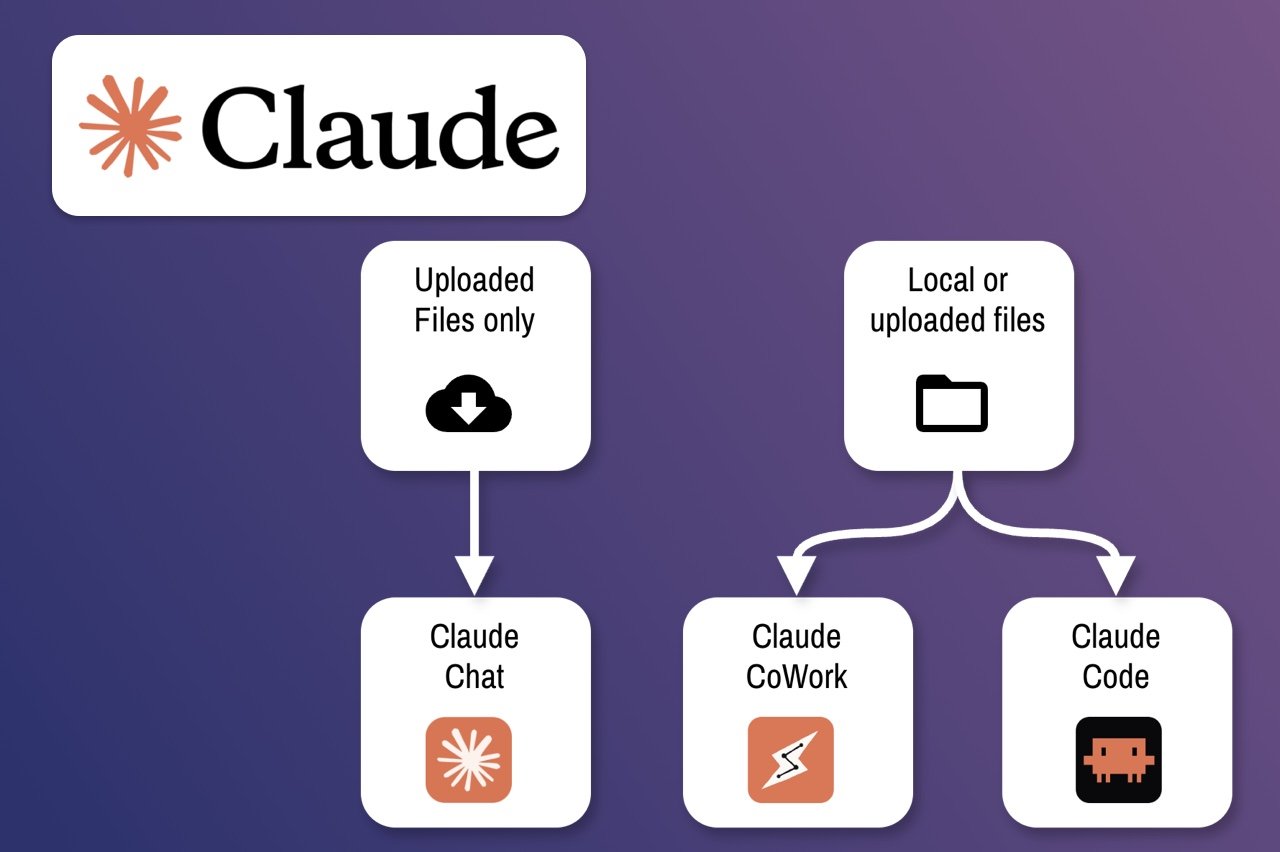
There are a few ways to integrate AI and Zotero, ranging from plugins which embed AI directly into Zotero’s UI, to more indirect connections between your AI workspace (like Claude Cowork) and Zotero via MCP.
Both are covered in the list below, but here’s quick links to the best AI resources for Zotero:
- Beaver is a (paid) AI assistant made for Zotero.
- Integrating Zotero and Claude/ChatGPT via MCP connection.
- LLM for Zotero is a free plugin to connect ChatGPT/Claude with Zotero, very customisable.
How do I install Zotero plugins?
Downloading and Installing Zotero plugins is very straightforward. They all come in the form of .xpi files and almost all are free and open-source. Zotero plugins can be downloaded on GitHub (links are provided for each plugin in this article).
Download a plugin by opening the latest release, and then just left-clicking the xpi file (it is not necessary to download the source code zip). If clicking it does not automatically download the file, right-click it and select Save Link As.

Once your xpi file is downloaded, go to Zotero > Tools > Plugins. Then, click the cog icon in the upper-right of the panel, and select “Install Plugin from File”.

This will launch a file explorer: find the xpi file you just downloaded and open it there. This is all you have to do to install any plugin!
Let us get on with the list of best plugins for Zotero 10.
Beaver Zotero Plugin
Beaver is an AI assistant that lives directly in Zotero, equipped with a refined set of agent skills to help you automate bookkeeping tasks, as well as facilitate research.
Beaver is a paid plugin and its usage is credit-based. There is a 25-credits trial, after which you can choose between a $10/mo or $20/mo plan. Alternatively, you can bring an API key from OpenAI, Anthropic or Google, and use the AI model of your choice.
How to use Beaver
Beaver works via a familiar AI chatbot interface, located in a collapsible side-panel in Zotero. It is safe to say, by just asking Beaver what to do in plain English, it can perform 90% of tasks in Zotero. Prompts like “find all items with missing abstracts and retrieve an abstract for them” work as you’d expect (Beaver is also good at avoiding making things up if it fails to find authoritative data online).

Who should use the Beaver plugin
Those who already pay for an AI subscription elsewhere might be (understandably) curious whether Beaver offers any serious benefit beyond that of being integrated in Zotero’s interface.
Beaver’s main advantage is that it is built for working closely with your Zotero library. It can search across the full text of your PDFs extremely quickly (testing side-by-side with Chat GPT Sol, we got an almost instantaneous answer from Beaver vs several minutes of work from ChatGPT, with comparable results in terms of quality), return sentence-level citations, and use a scholarly retrieval agent designed specifically for academic research. It can also discover literature related to the papers already in your library, making it particularly useful during literature reviews — which is why Beaver is employed in the Lit Review course.
The premium version goes a step further by allowing Beaver to read and add annotations, making it one of the most complete AI integrations currently available inside Zotero itself (and definitely the most polished in terms of user experience).
👉 External agents still have their place. For example, connecting Zotero to Claude Cowork (or Codex) can give you considerable flexibility without having to justify an extra monthly subscription. We recently wrote a guide on setting this up:
Overall, Beaver is a strong option for invested Zotero users, particularly if you regularly work with large libraries or are conducting a literature review. It is also appealing if you can use an institutional API key, or simply value the convenience of having an AI research assistant embedded directly inside Zotero.
Better Notes Zotero Plugin
https://github.com/windingwind/zotero-better-notes/
Better Notes is a plugin which greatly overhauls the note-taking experience within Zotero. It comes with advanced features such as linking between notes, note templates, and exporting to PDF/Word/Markdown.
It also supports automatic cross-syncing between Zotero notes and markdown files laying outside (such as in an Obsidian vault). This means you can edit a note within Zotero, and have it synced as a note in Obsidian.
How to use Better Notes
To see Better Notes in action, just create a new note in Zotero. You will see a new, very Obsidian-like Relation Graph in the right-side panel. As well as a new button to create links between notes. The link-creation process is admittedly quite janky, but usable.

Better Notes also adds a preview of the linked note on hover, and a slash-menu (/) that lets you quickly insert markdown blocks.
Who should use the Better Notes plugin
Better Notes is good, but not even close to dedicated note-taking tools like Obsidian. That said, its narrow focus makes it a good match for those who are just approaching the world of advanced note-taking — and may find Obsidian overwhelming at first.
👉 If you’ve been wishing to take the plunge and learn Obsidian, we have a (newly released) dedicated foundational course that will lead you up its learning curve — without any of the pain. For a free introductory look at advanced note-taking, you can also watch my latest longform YouTube video. It’s almost 1 hour long and packed with valuable information for Obsidian beginners!
It is also good for those who end up taking notes in Zotero anyway. Being able to keep these synced with an Obsidian vault is a valuable enough piece of functionality to justify the whole plugin.
Actions & Tags Zotero Plugin
https://github.com/windingwind/zotero-actions-tags
From the same contributor as Better Notes, comes Actions & Tags. This is a fairly powerful plugin which is also quite intuitive to use. It allows you to create actions. An action just specifies some behavior (eg. adding a tag) that is to be carried out after a particular trigger (file opens, Zotero loads, shortcut pressed etc.).
Say for example that you want a paper to be marked with an unread tag when it is added to your Zotero library, and you want to be able to remove that tag by simply pressing a shortcut? This plugin can do that easily.
You can also chain multiple actions together, or have an action execute a custom script.
How to use Actions & Tags
Let’s create a simple action with this plugin. Open the Zotero Settings (⌘, on Mac, Ctrl , on Windows) and go to Actions & Tags. Click on the little + icon to open the action creation panel. You can define the following properties of an action:

For instance, an action that tags a paper with the tag “research-2026” when pressing a shortcut like ⌘⇧H (or Ctrl⇧Hon Windows) can be created like so (image above).
The usefulness of this plugin can be augmented with custom scripts. There is a collection of custom actions made by the community, for those who want to dig deeper.
Who should use the Actions & Tags plugin
Action & Tags can greatly increase the productivity of most Zotero users, if you use Zotero frequently — especially its tags feature — getting to grips with this free plugin is a good 10-minute investment.
ZotMoov Zotero Plugin
https://github.com/wileyyugioh/zotmoov
ZotMoov is a very simple but handy plugin if you want to specify exactly where your Zotero attachments (the PDFs of papers/books) live.
By default, when you import a PDF in Zotero, that file is duplicated and stored in an internal folder. This plugin allows you to automatically store the PDFs referenced by Zotero wherever you wish, so that you can have your Zotero library PDFs all neatly stored in an easily accessible folder (eg. on your Desktop or Documents).
How to use ZotMoov
First, you should choose the folder ZotMoov will use. Open the Zotero Settings (⌘, on Mac, Ctrl , on Windows) and go to ZotMoov. There you can change the directory ZotMoov will use instead of the internal Zotero one, under the self-explanatory “Directory to Move/Copy Files To” setting.
Now, we can move some files. Simply right-click on an item (or multiple items, even your entire library at once), and at the end of the dropdown list you will see three ZotMoov options:
- “Move selected to Directory” moves files to the default directory you have directed ZotMoov to use.
- “Move selected to Custom Directory” moves files to a custom directory (a file explorer will open). This allows you total fine-grained choice over file location.
- “Move selected from Directory” moves files from their custom directory back to the default (internal) Zotero folder.
Who should use the ZotMoov plugin
If you care about having control over where your PDFs are stored, ZotMoov is a no-brainer to install. You can also use it to point Zotero to a folder within an Obsidian Vault, this is especially useful if you want to gradually move to reading/annotating PDFs in Obsidian, but still need to use your Zotero library.
Notero Zotero Plugin
https://github.com/dvanoni/notero
Notero is a free and open-source plugin that connects Zotero to Notion. Once set up, it automatically creates a page in a Notion database for each paper you add to selected Zotero collections.
These pages can include information such as the title, authors, abstract, publication, DOI, tags, collections and citation. Zotero notes can also be synced into the body of their corresponding Notion pages.
How to use Notero
👉 We explored in-depth how to use Notero in this blogpost:
Who should use the Notero plugin
Unsurprisingly, Notero is an easy recommendation for academics who already use Notion. It allows you to build a custom literature database without having to manually recreate a page every time you save a new paper in Zotero.
Scite Zotero Plugin
https://github.com/scitedotai/scite-zotero-plugin
The Scite plugin for Zotero by Scite AI gives you a convenient overlook of a paper’s citation status. It lets you see not only how many papers have cited a given publication in your library, but also gauge the sentiment around these citations. It adds Scite’s “Smart Citation” data directly to your Zotero library, distinguishing citations that support, contrast with, or simply mention a paper’s claims.
How to use Scite Zotero
Usage is extremely straightforward, install the plugin and a new category will appear in the right panel, called Scite Smart Citations.
This will display:
- Supporting: Citations that support the paper’s findings.
- Contrasting: Citations that contrast with the paper’s findings.
- Mentioning: Citations that reference the paper without taking a stance.
- Total Distinct Citing Publications: Unique papers that cite the work.

Clicking View full report will direct you to Scite’s website. This will allow you to inspect the citations individually and access the full set of Scite’s features, provided you have an active subscription.
👉 We reviewed Scite in-depth here:
Who should use the Scite Zotero plugin
The Scite plugin can be extremely useful for literature reviews. It gives you a convenient way to spot influential, strongly supported or contested papers without leaving Zotero. If you have a Scite subscription, this is a go-to plugin.
Linter for Zotero Plugin
https://github.com/northword/zotero-format-metadata
Linter for Zotero is a plugin that helps you keep your Zotero library tidy and consistent. A “linter” is a term from software programming, it is a tool that cleans code to conform it to certain standards. Analogously, this plugin cleans your Zotero library metadata. It addresses issues such as:
- Duplicate imports
- Inconsistent capitalisation.
- Missing/incorrect journal abbreviations.
- Inconsistent dates, page ranges or volume numbers.
- Other incomplete metadata imported from a PDF.
All these Linter will detect and try to fix automatically.
How to use Linter for Zotero
To use Linter properly, it is good to check its settings (go to Zotero Settings > Linter) to make sure its metadata formatting standards are actually aligned with your needs.
Then to use it, simply right-click one or more selected items, and choose Linter > Lint and Fix — or one of the more fine-grained options. It is probably best to test it on one item first, and gauge whether you like the result, tweak the settings, and try again (before using it over your whole library).
Who should use the Linter for Zotero plugin
Since the power of Zotero lies in its ability to organise and manipulate metadata, this is also an easy-to-recommend install for anyone. It takes care of a lot of the annoying small chores that matter when formatting citations.
Better BibTeX Zotero Plugin
https://retorque.re/zotero-better-bibtex/
Think of Better BibTeX as a bridge between Zotero and different text-editing apps (with different formatting systems) you might be using. If you write in LaTeX (eg. in Overleaf) or markdown (eg. in Obsidian), Better BibTex will help you reliably integrate Zotero with those apps.
How to use Better BibTeX
👉 This is an essential Zotero plugin for Obsidian users, we have recently gone through a workflow employing it in this post:
Who should use the Better BibTeX plugin
As of version 8, Zotero already provides basic citation keys, so Better BibTeX is not necessary for everyone. It is most useful when you regularly write in Obsidian, and want a customisable connection between your Zotero library and your note-taking environment.
Other useful plugins
The amount of available Zotero plugins is actually impressive, so it is impossible to give each enough attention in a single blogpost. Here is a quick list of “honorable mention” plugins that can provide good value for the right use case:
Translate for Zotero
https://github.com/windingwind/zotero-pdf-translate
Lets you translate selected passages, annotations, notes, metadata and even entire PDFs or ePubs without leaving Zotero.
LLM for Zotero
https://github.com/yilewang/llm-for-zotero
Lets you use AI in Zotero in an embedded way (like Beaver). You can even use it with Codex or Claude Cowork if you do not have an API key.
Zotero Attanger
https://github.com/MuiseDestiny/zotero-attanger
Do-it-all plugin for managing Zotero attachments: attach recent downloads, match files to items, rename them automatically, and move or copy them into a predictable folder structure.
Folder Import
https://github.com/retorquere/zotero-folder-import
Folder Import lets you import an existing folder of PDFs and other attachments into Zotero while recreating its folder structure as collections. It is neat when moving a large pre-existing archive into Zotero for the first time.
Zoplicate
https://github.com/ChenglongMa/zoplicate
Detects and helps you deal with duplicate import (default Zotero has a similar functionality, but with less depth).
Zutilo
https://github.com/wshanks/Zutilo
Zotero’s utility belt. Adds numerous small commands and keyboard shortcuts.
Zotero Syllabus
https://github.com/janbaykara/zotero-syllabus
Turns Zotero collections into structured syllabi and course reading lists. Lets you organize readings by class or week, set priorities and due dates, track progress, and import reading lists directly into Zotero.
Summary
Zotero is already an excellent reference manager out of the box. But the right plugins can turn it into a true powerhouse for academic research. Remember, however, that a plugin is only as valuable as the use case you have for it. There is no point in installing every plugin under the sun. Instead, apply discretion and pick the plugins that address genuine gaps in your workflow.
In short, whether you want a simple reference manager with a few extra bells and whistles, or a carefully customised puzzle-piece in a highly automated workflow, there is probably a plugin that can get you there.