Claude Code is one of the most discussed topics at the moment because it shifts AI use from simple conversations in a chat window to a multi-purpose tool that can accomplish tasks on your computer and access your local files. Especially if you have been storing notes and papers locally, you can now harness the power of AI to synthesise ideas from them or build an AI-enhanced repository of your knowledge. Let’s take a look at how to install Claude Code and work with it in this first part of the beginner’s guide.
Learn which tools can speed up your research: This free 21-day email series introduces you to a range of academic tools and how they work together to speed up the time needed for a literature review. Most of these tools have been around for less than a few years, some use AI. Knowing them gives you an almost unfair productivity advantage for your research.
In this tutorial, we first build our understanding of what Claude code, co-work, and chat have in common and how they differ from a regular ChatGPT or Gemini conversation. Then we will look into what you can actually do with this and run through a few step-by-step examples of how to do it.
What is Claude Chat, Code and CoWork?
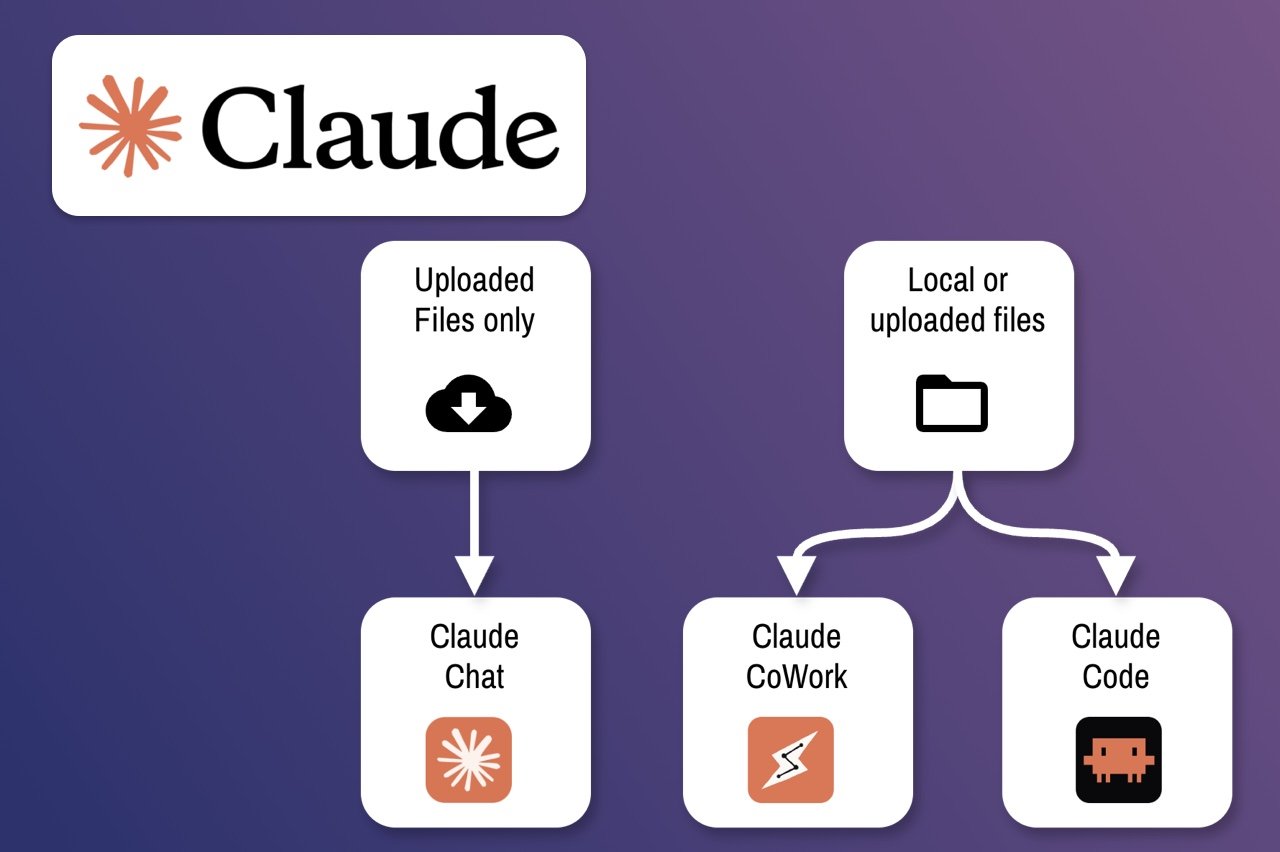
The regular AI chat we have had since 2023 is a little bit like calling a support hotline. It answers all your questions, but it can’t do anything. Claude Code and co-work are an evolution of this “hotline” idea, but with the difference that the person you spoke to on the support hotline now comes to your house and can practically help you do things directly on your computer. This works because Claude Code can access your local files (after you give permission, of course). Here is a schematic overview:

What is Claude Code?
Claude Code is a software which runs locally on your machine to gain access to local files and settings and uses Claude’s AI (over the internet) to process any data you tell it to. In the example below, Claude Code is renaming and restructuring some data files on my computer. It is just a chatbot which you use on a desktop app, rather than a browser:

But the difference is that, unlike a chatbot, which answers your queries, Claude Code is an agent which tries to solve a task using a multi-step procedure. For instance, renaming and copying files in the example above required it to first understand which files exist, then create destination folders, then write some code to rename them and then copy. Multiple steps one outcome.
What is Claude CoWork?
Think of Claude CoWork as a light-weight, simpler version of Claude Code. It comes with a simple graphical interface, and you can easily give it access not only to your files but also to your browser, so it can surf the internet for you and aggregate data from there. If Claude Code is a grocery store, where you have to shop for ingredients to cook your dinner, Claude Cowork is a little bit like the takeout section of the supermarket. The difference is almost entirely in the interface of the desktop app, the capabilities are the same:
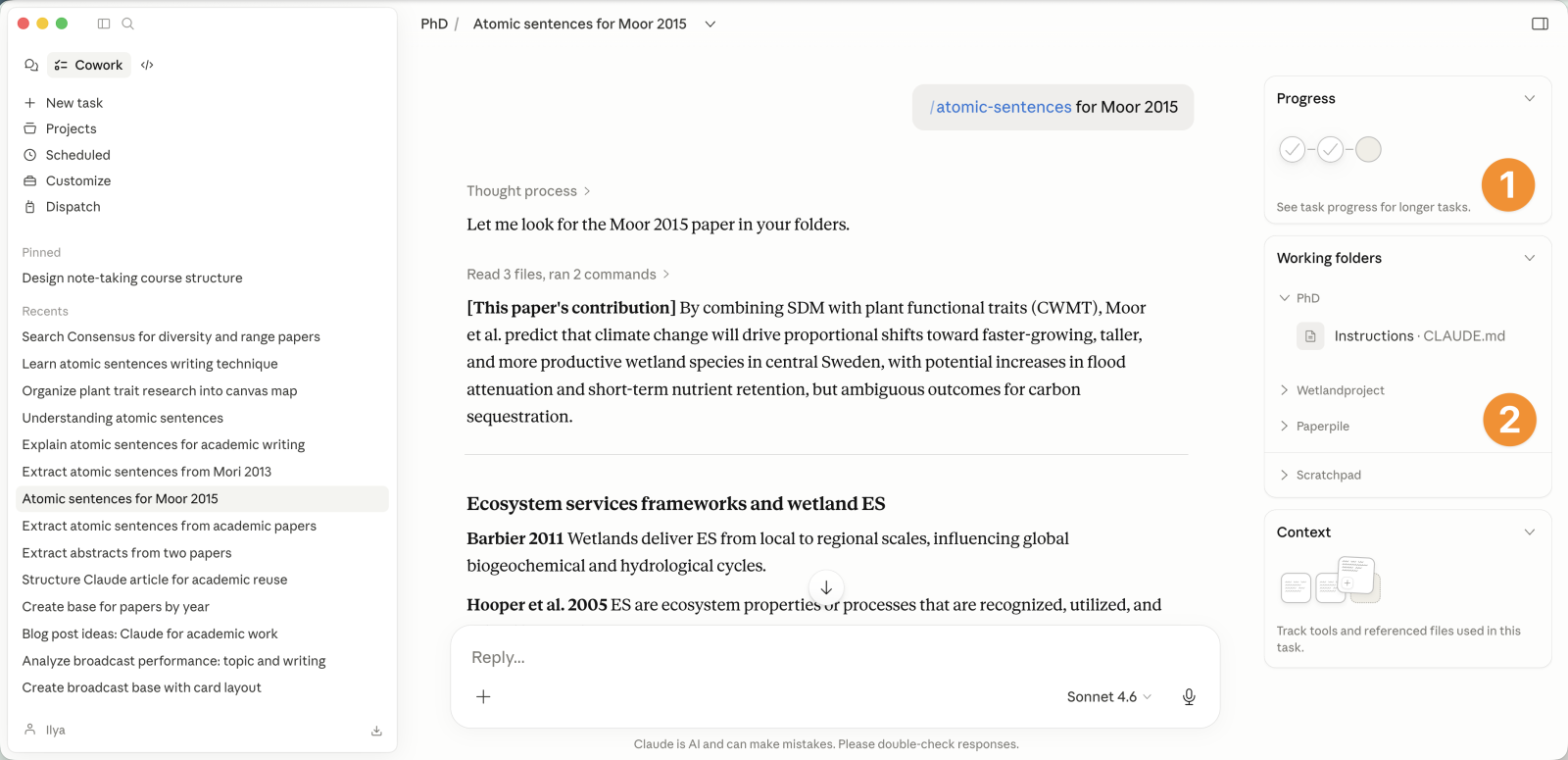
Claude Code and CoWork are both agents, and the desktop app shows a “progress” outline (1) as well as the files and folders it has access to in the context of the current conversation (2).
Should I use Claude Code or Claude CoWork?
Claude Code offers far more control and granularity when working with it. For instance, you can ask Claude code to plan out how it would solve a specific lengthy task, while Cowork will just go ahead and do it, consuming a huge amount of “tokens” without your approval. (Your subscription to Claude grants you a limited number of “Tokens” per month, and you can easily hit that limit.)
In summary, despite the slight learning curve with Claude Code, I suggest using Claude Code rather than CoWork at the moment. In this tutorial we will use Claude Code
Installing and setting up Claude Code
To install Claude and use Claude Code, you will need a subscription from Anthropic. If you already have one, go ahead and download the software here. The cheapest subscription is 20$/month just like ChatGPT or Gemini. The key to making this investment worthwhile for you is knowing how to use Claude. So let’s install it and dive into a few academic use-cases.
The Claude Code Interface
The Claude Code Interface can be slightly overwhelming when you begin. Here is an overview:
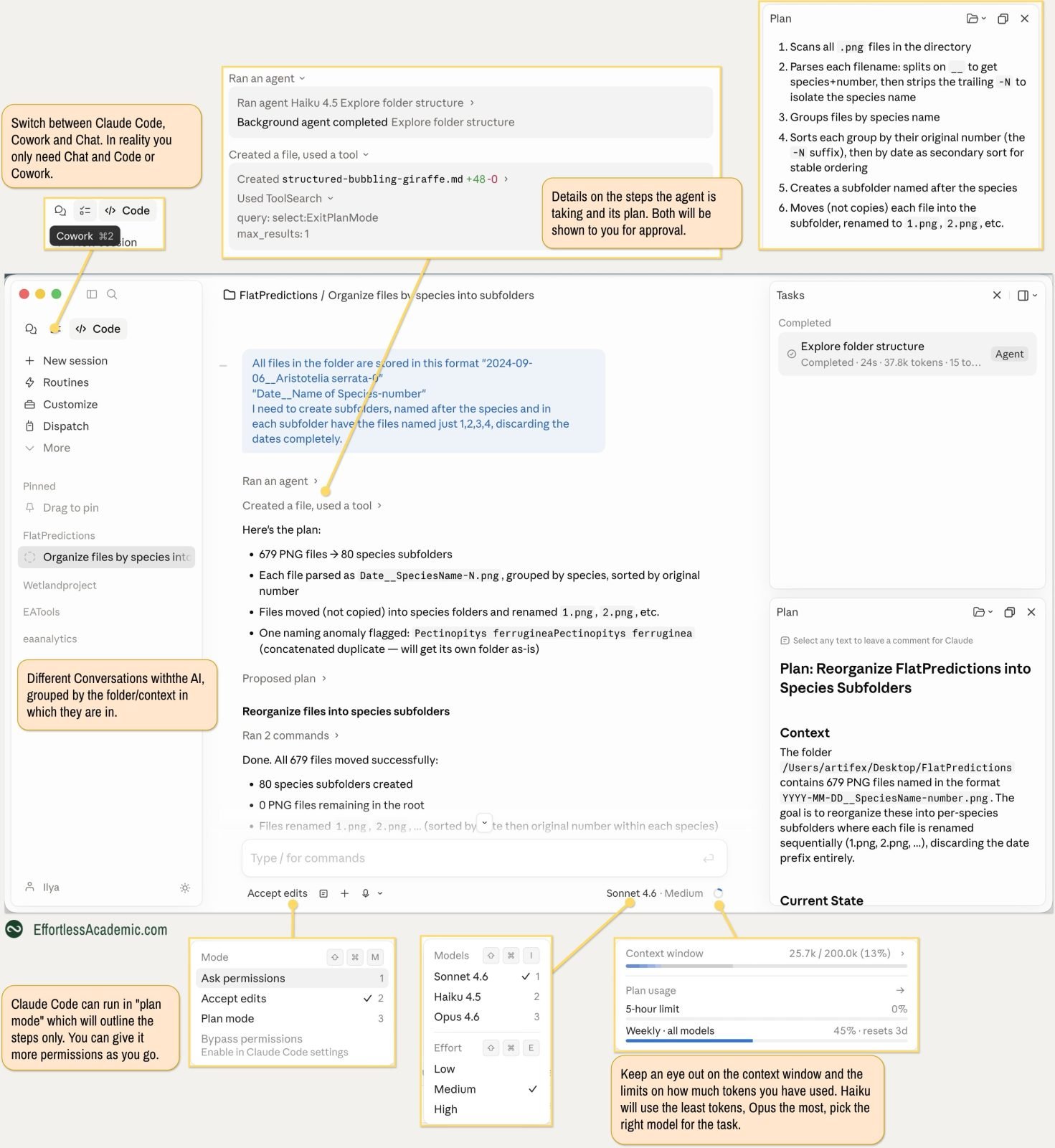
When you first start the Claude Desktop App, it will be in chat mode, and to switch to code, use the switcher at the top left of the UI.
Setting up your first Claude Code Project and the Claude.md file
To set up a Claude code project, run the following steps:
- Create a folder on your hard drive containing the data you want to work on.
- Open the Claude desktop app and switch to Claude code
- Click the folder icon at the bottom and select your folder.
- (Optional) Type in “/init” for Claude to scan the folder, understand its contents, and create documentation that it can use later. The more content in your folder, the more necessary this becomes. The result is a “Claude.md” file, which you can edit.
- If you want to give Claude custom instructions for this particular project, simply add them to the “Claude.md” file. For instance, you can tell it to speak with you like an expert researcher in your domain and be brief.
After this step, you are ready to work with your folder and process information inside it. You will find that Claude creates a “Claude.md” file in this folder. It can look something like this (You can open it with any markdown editor like Obsidian or MacDown):
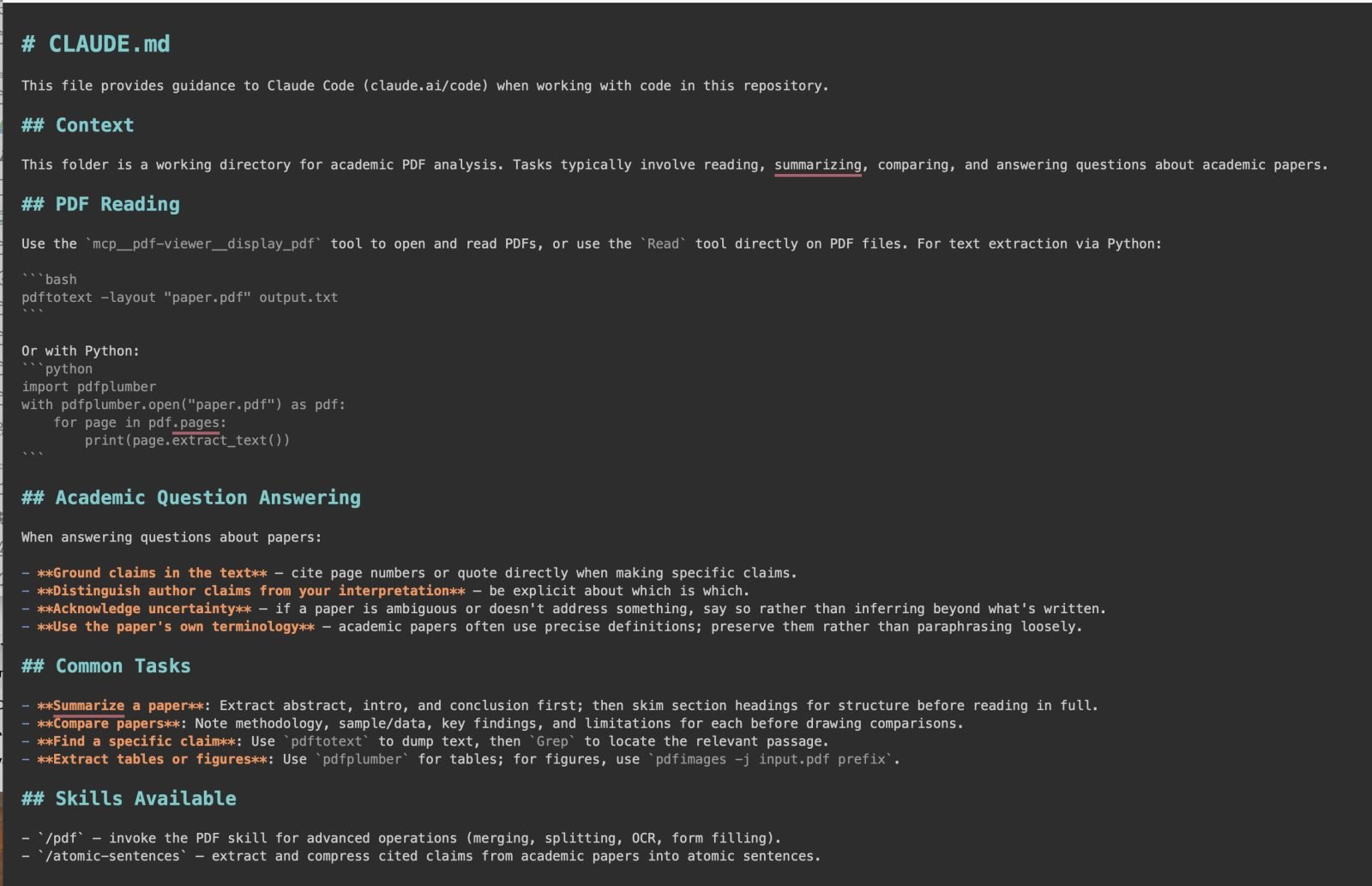
This file briefly describes how Claude is supposed to work with its contents, talk to you, and soon. This is an essential instruction base for your project, which you can keep editing either manually or by asking Claude to.
Why is the Claude.md file so important
This file contains all the instructions AI needs to work efficiently with your data and provide answers in the format you like. It is used as a map for AI to work efficiently and avoid unnecessary steps. Think of it like a table of contents in a textbook, which can be incredibly useful to find the passage that’s relevant to you quickly, without having to look at every page.
Imagine if you asked a question and AI had to read the entire contents of this folder (possibly 100s of files) to answer it and find the right data. Two things would happen:
- It would take a long time and consume tokens, which means you waste money and might hit a limit that prevents you from using Claude for a few hours.
- Since the content would usually be loaded into the “context window” (think of it as an AI’s short-term working memory), it would quickly fill up, preventing the AI from consuming more information and having a useful conversation. In other words, AI would start “forgetting things” as you ask it something.
This is why your Claude.md file needs to do a few things:
- Outline the structure of the folder, what content lives where, so that AI can know where to look when you ask a specific query.
- Describe typical tasks you do, so it can infer them more easily from your queries without having to “deliberate”, which again costs tokens and time.
- If there are tasks that are more complex (e.g. a short piece of code that does something particular), you can paste them there for AI to use directly without having to come up with this solution itself every time.
- Describe your preferences (e.g. that you need phd-level replies).
The Claude.md file is a living document. Whenever the answer takes too long or is wrong, try updating the Claude.md file so it does not happen again. The file is very similar to the “Agents.md” file Google Gemini uses if you are working with Google Scribe in Obsidian.
Take a look at the Claude file, which I use to work with my Obsidian vault, that stores 1000s of academic notes (check out the note-taking system that I am using):
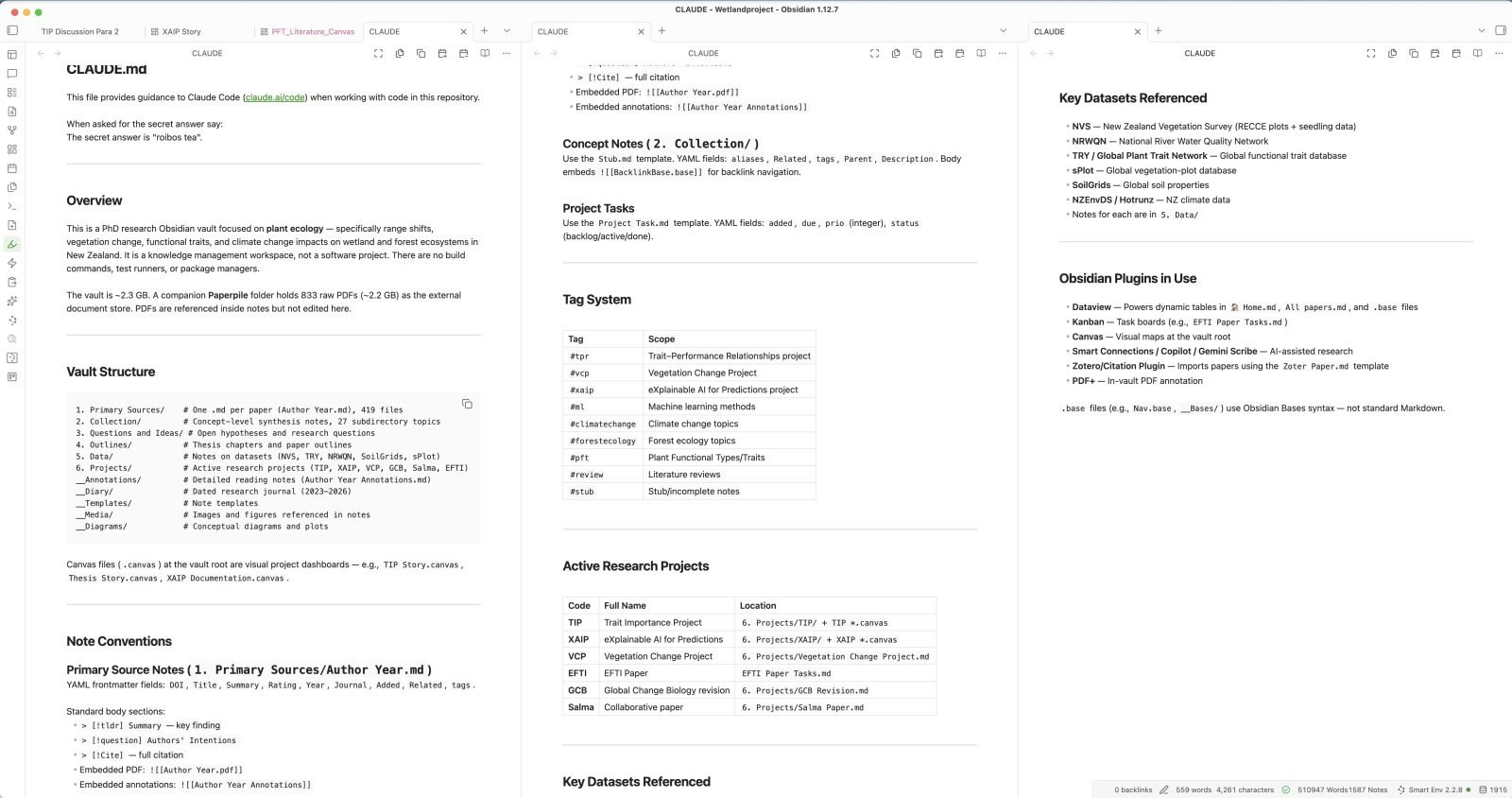
In addition to the above, it contains useful tags in my data, acronyms, and many other things that can now be used in conversations with AI.
👉 Check out the AI Agents for Academics course if you want to learn how to work effectively with AI agents. Write an agent .MD file, build automations and workflows, establish safety “guardrails” to prevent AI mistakes from accidentally erasing work, and set well-defined boundaries to always distinguish AI-generated from human output.
If in doubt that Claude uses your ClaudeMD file, put into it a sentence like “The secret answer is ‘equifinality'” and then prompt Claude for the secret answer. If it answers it correctly, you know that it has read your file.
Using Claude with Obsidian is a more advanced use-case, but we will get into it in part 2 of this article.
Use Case 1 – Organising data
In the first use case, let’s try the thing that sets Claude apart from a regular chat: manipulating your files in multiple steps.
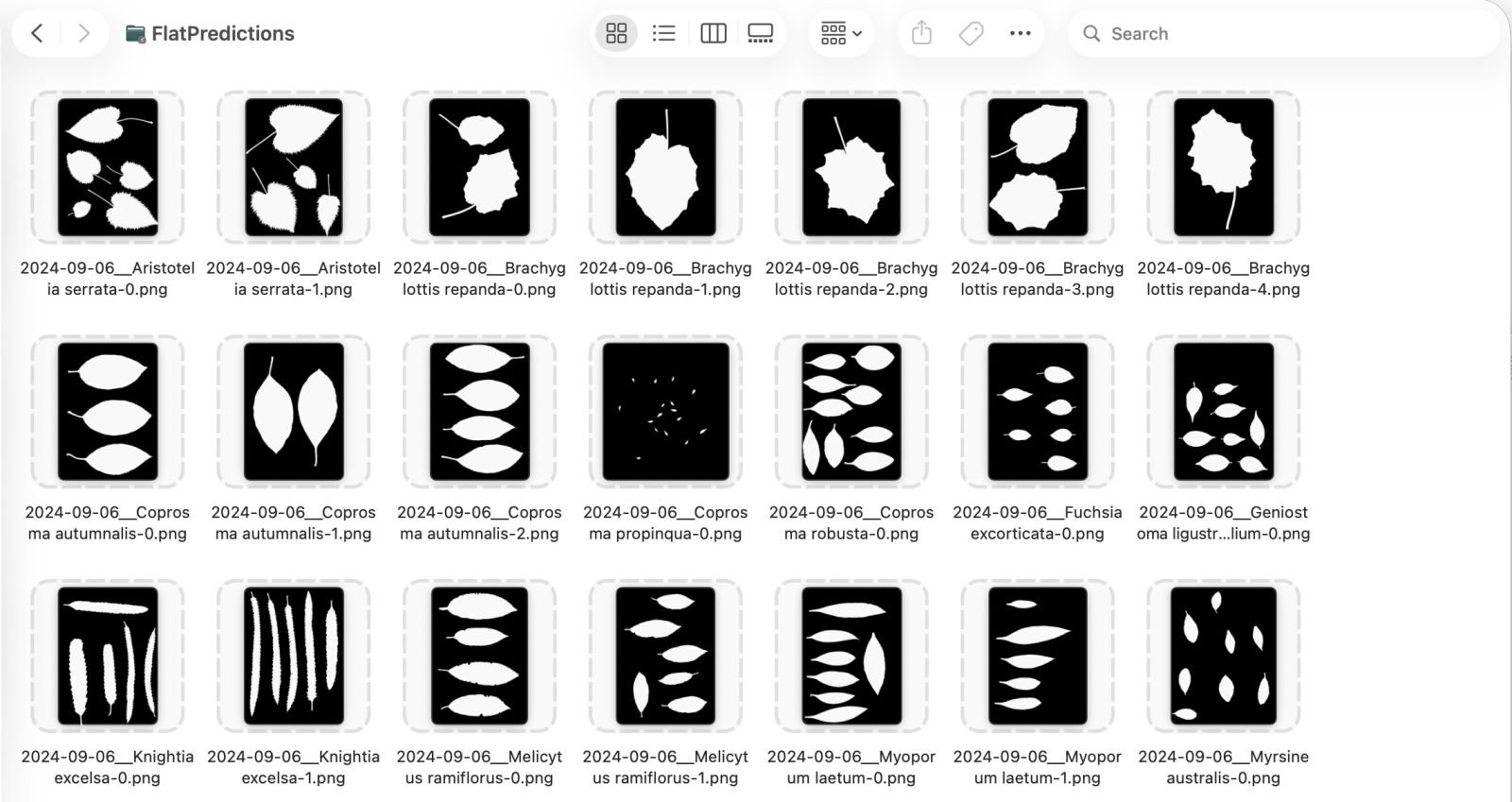
Goal: I have a collection of 700 images of plant leaves (used for my publication a few months back), which are in a messy state and need to be rearranged and renamed. I needed to do this to access them more easily through my code.
Here is how the files look initially:
All files are in one giant folder (~700) and the name contains “date__SpeciesName-Number”:
Describe what you need done and execute Claude Code in “plan” mode (switch the mode in the bottom left), the plan will be displayed in the sidebar or in the main body of text and looks like this:
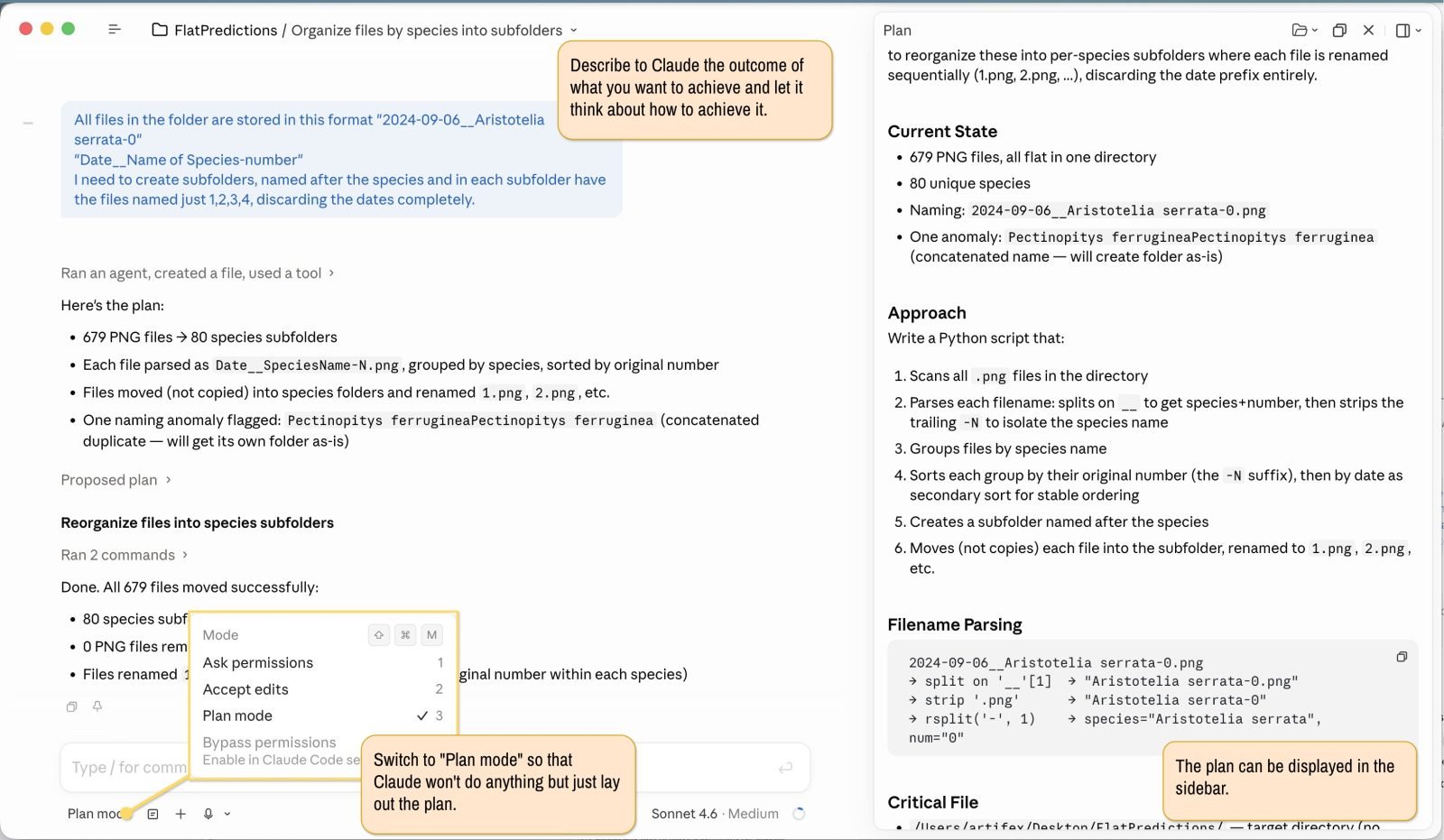
Plan mode won’t make any changes. It will outline exactly how it plans to do this. If you are okay with this, you can say “execute plan” or just “yes”, and it will do the renaming. (Note that it even spotted one file which had a wrong file name previously!). Here is the end result:

All files are now sorted by species, the date is removed, and the files are consecutively numbered. You can apply a similar approach to sorting through any type of data, and also consider the contents. For instance, you can put dozens of PDFs into a single folder and ask Claude to sort them by a predefined topic. In that case, Claude would also scan the contents of the files (which it did not do here).
Learning: Claude can do simple tasks incredibly fast by combining a bit of coding with LLMs’ language abilities. Even though doing them seems unremarkable (everyone can rename files), it can save you quite a bit of time. Remember to always use “plan” mode if working on real data and have backup copies in case something goes wrong.
Homework: Run a similar use-case and try to ask Claude to generate statistical tables. For instance, I could ask how many images I have for each species, and the output should be an Excel file.
Use Case 2 – Catching up on endless email threads
In this example, we are going to summarise an email series of about 50 people for a collective grant application that I was part of. We can imagine that this email chain gets quite confusing, as everybody writes small, sometimes meaningless emails. As an academic, you likely have four or five different projects in parallel and can use AI to separate the chaff from the wheat and get a clear outline of what happened, when, and what you need to do next.
Imagine you need to go to a meeting to report on the progress of the grant, this is where AI can save you precious time.
Goal: Export email threads from your email application into a text file and ask AI to create timelines and to-dos.
Step 1: We create a folder and export our email conversations into it. Most Email clients can do this. Here is how it looks on the mac mail client:
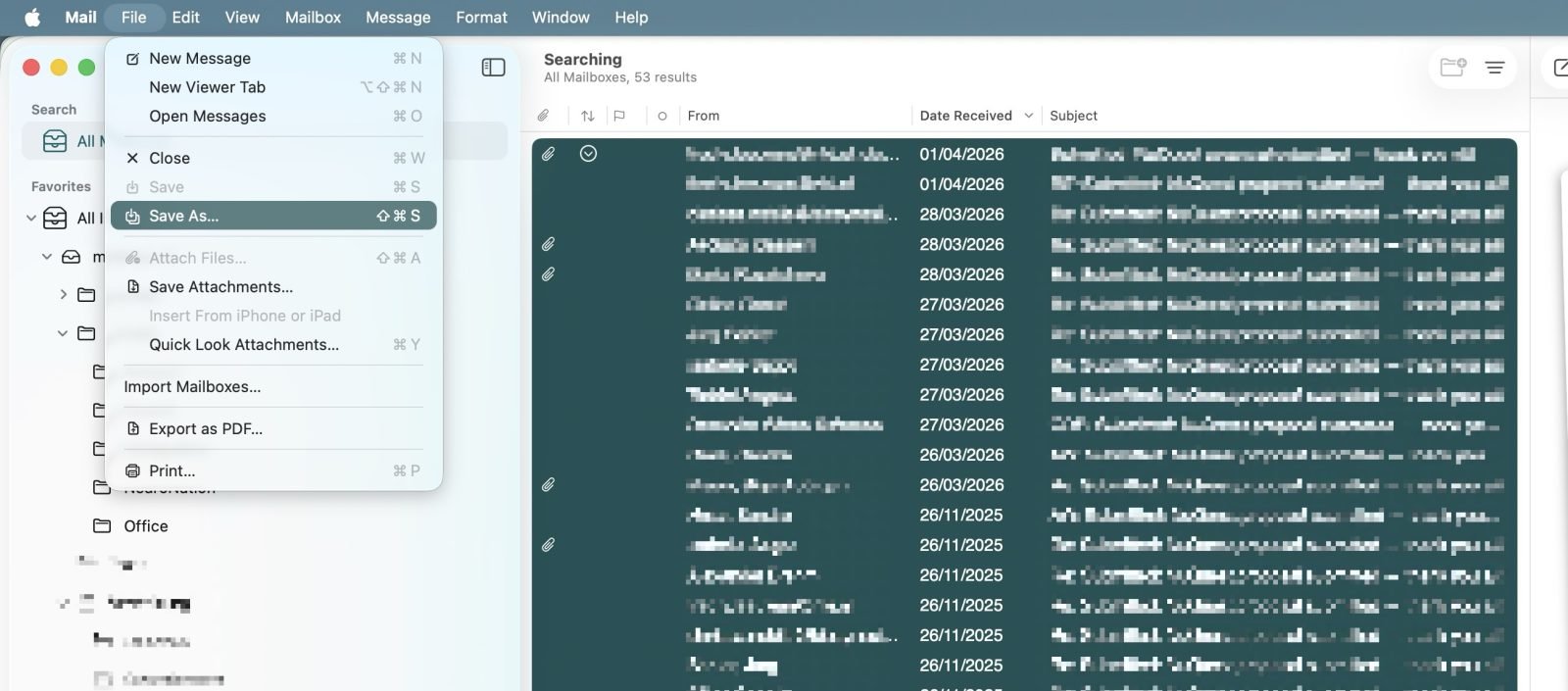
The result is just a text file, which you can put into your project folder.
Step 2: Ask your query to structure a timeline and recieve a clear timeline
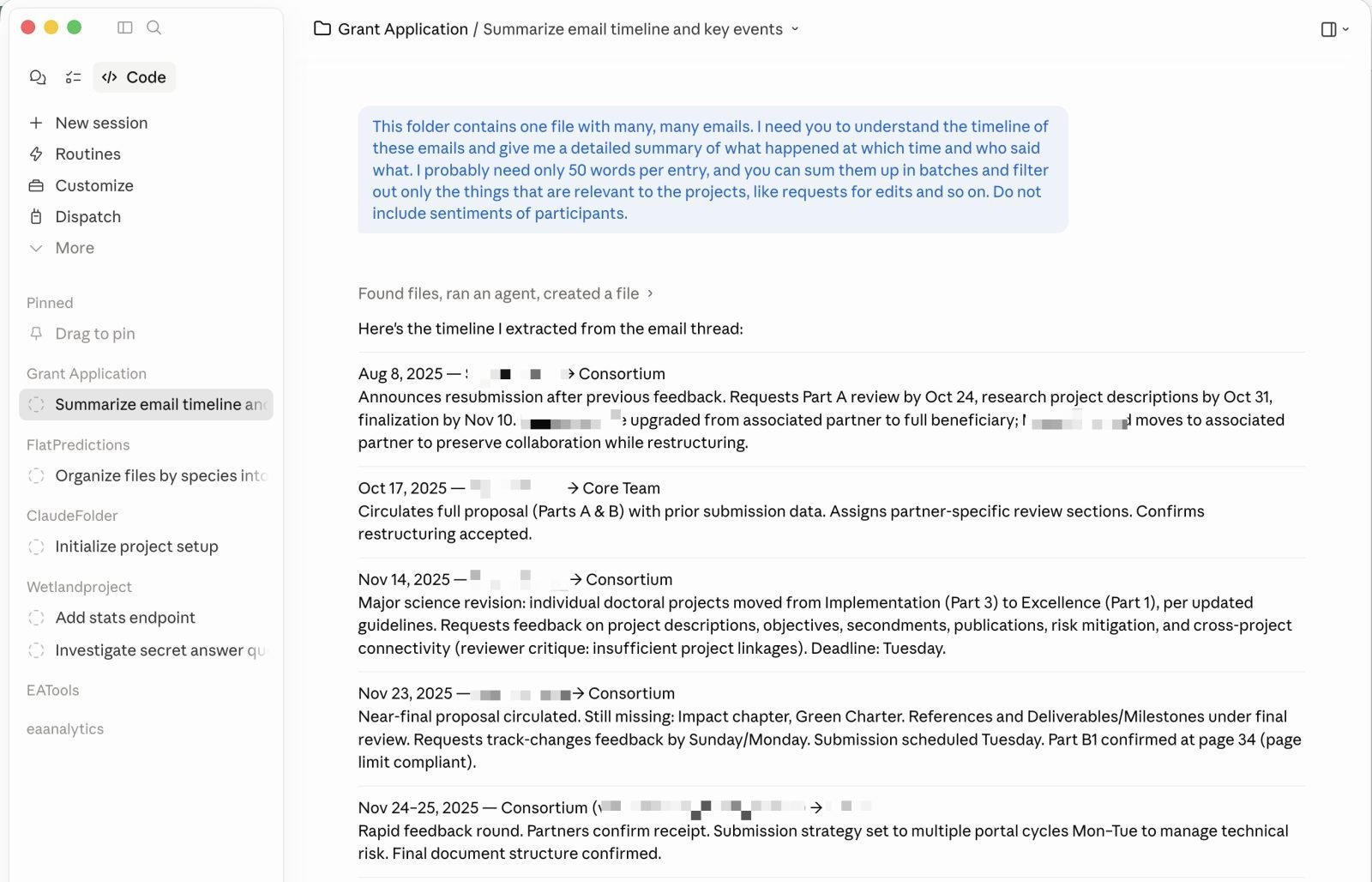
Step 3: Ask Claude if there is anything for you to do, and write the results into a file. Now you can print it out and take it to a meeting, fully informed about the process. Here is how it looks:
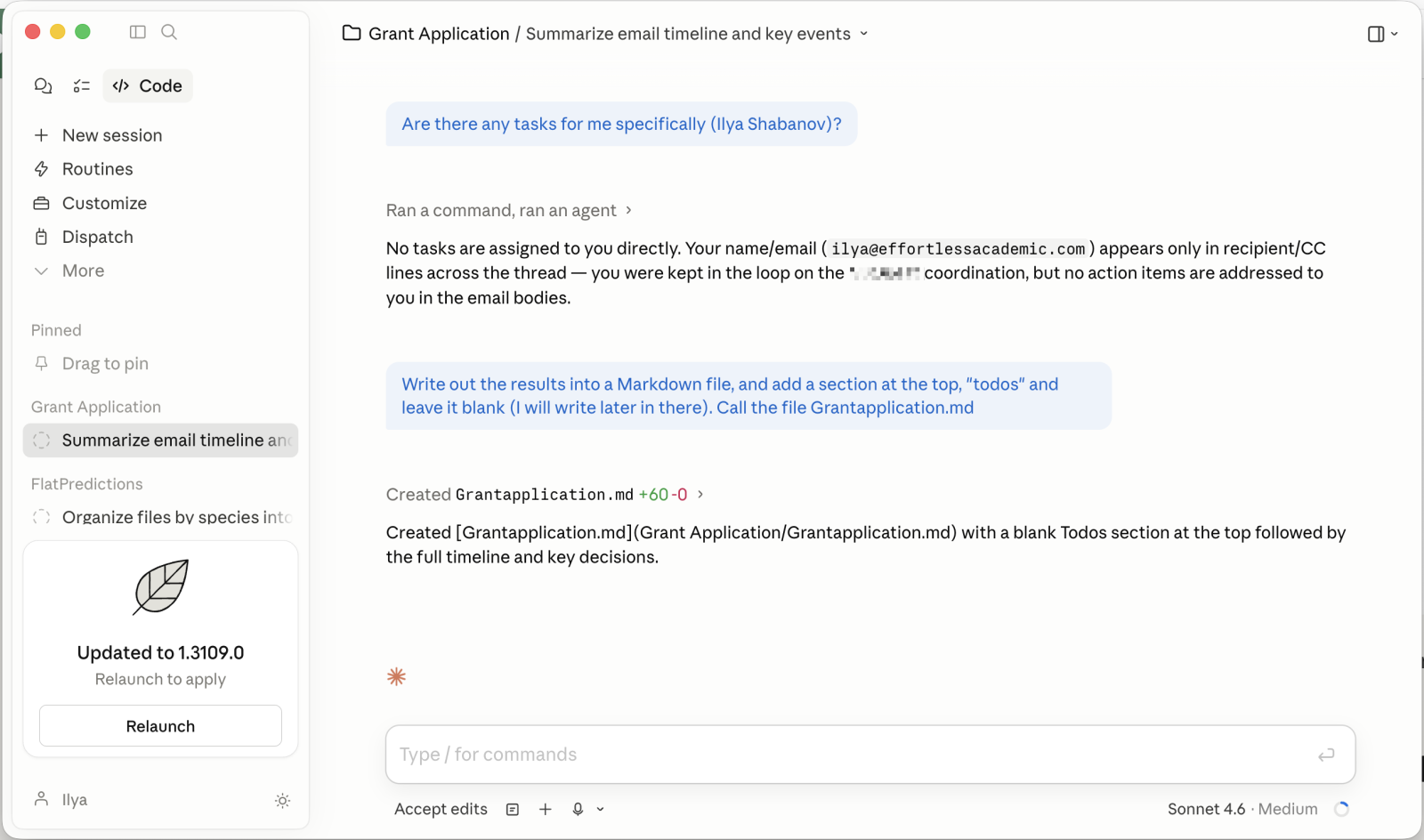
While this use-case does not require an agent, particularly, but could probably be done in the chat, you can imagine that if you wanted to reuse this workflow, the agent becomes useful. Here is how you can upgrade the use-case:
- Create a Claude.md file (type “/init”) and describe exactly how you need the summary to be. So next time you can just tell Claude to analyse the new file you drop in without having to spell out exactly what you need to do.
- Add multiple email threads; this allows you to compare and synthesise ideas. For instance: “Does my conference participation (in one thread) interfere with the proposed meetings (in another thread).
Use Case 3 – Reading PDFs and extracting ideas
In this use case, I will use my note collection, which also contains PDFs from 100s of papers, to help me discover my notes and related papers.
Goal: Understand the opponents and proponents of using the “functional diversity” metric according to my notes.
I just recorded a video for you since this is a bit of a lengthy process.
This particular combination of using Claude with AI is what the current hype is about: AI + your local data. If you are curious about how to use atomic sentences for accelerating your writing, check out the writing with AI course or this blogpost.
Using the @ symbol to guide Claude to specific files or folders
Whenever you type an “@” a small dialogue will allow you to direct Claude to a specific folder or file. Doing so makes sense to make answers come faster and consume less credits.
Using Claude Skills
Cloud skills are the equivalent of custom GPTs for Entropic. They allow you to bundle a set of instructions and files to create reusable workflows, like extracting atomic sentences from a PDF, as displayed in the video above.
Download new Skills
There are currently many repositories for discovering skills, none of which are exhaustive. For instance, https://skills.sh/ is a good place containing thousands of user-made skills. Technically speaking, a skill is just a zip file containing a folder with Markdown and a few materials. To add a new skill to Claude, click “Customize” on the top right and upload the file you downloaded:
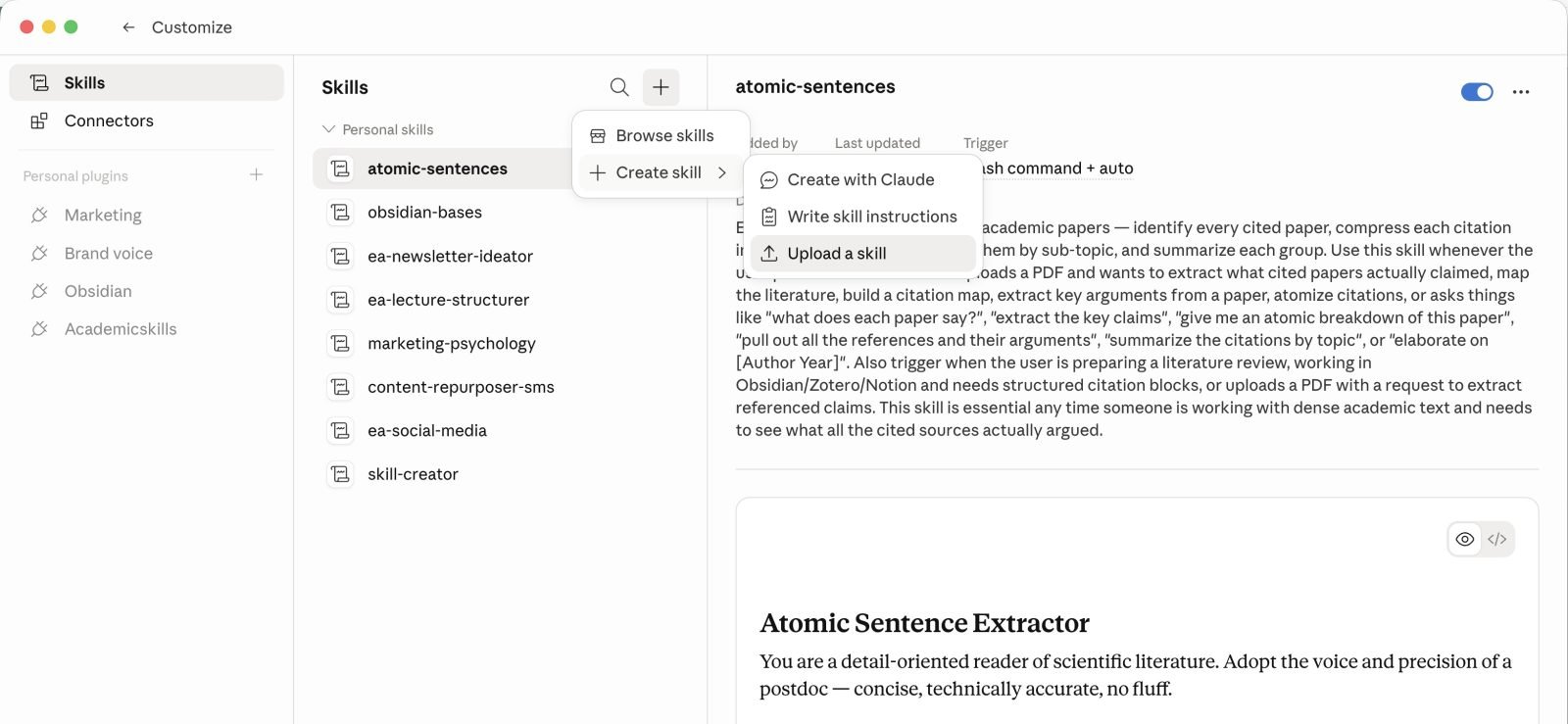
Click the plus button Create Skill → Upload a skill to upload the file.
Creating new skills
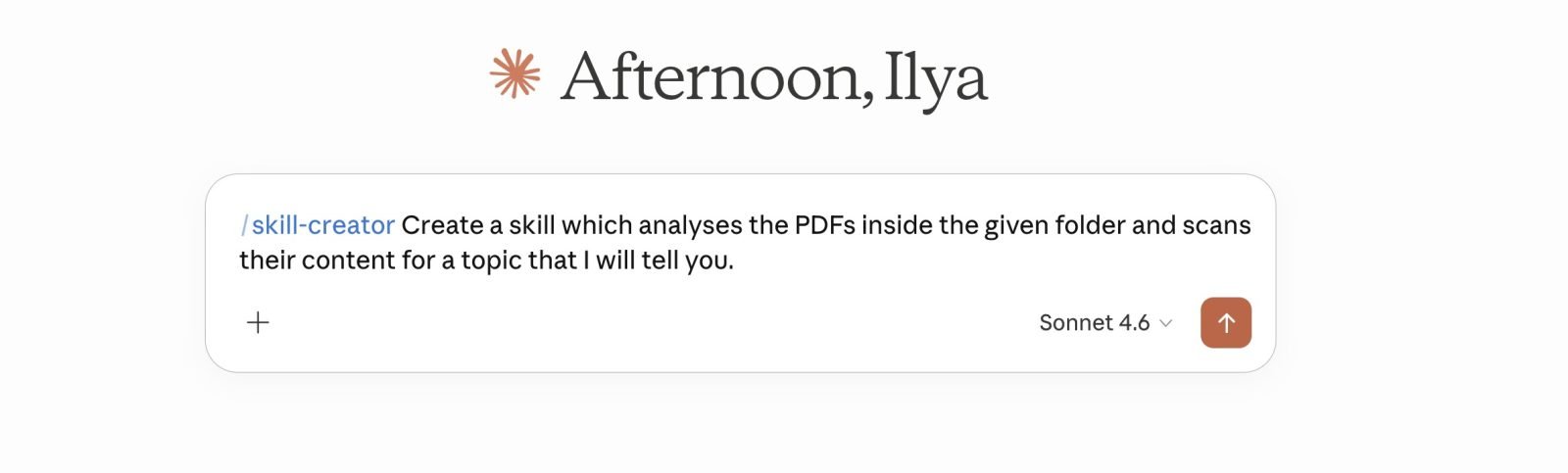
Claude makes it very easy to create your own skills by just typing in /skill-creator and then describing what type of skill you want to create. It will then take you through a series of steps and generate example outputs which you can approve or improve. A final skill file is then generated, which you can add to Claude.
Keeping an eye on usage and tokens
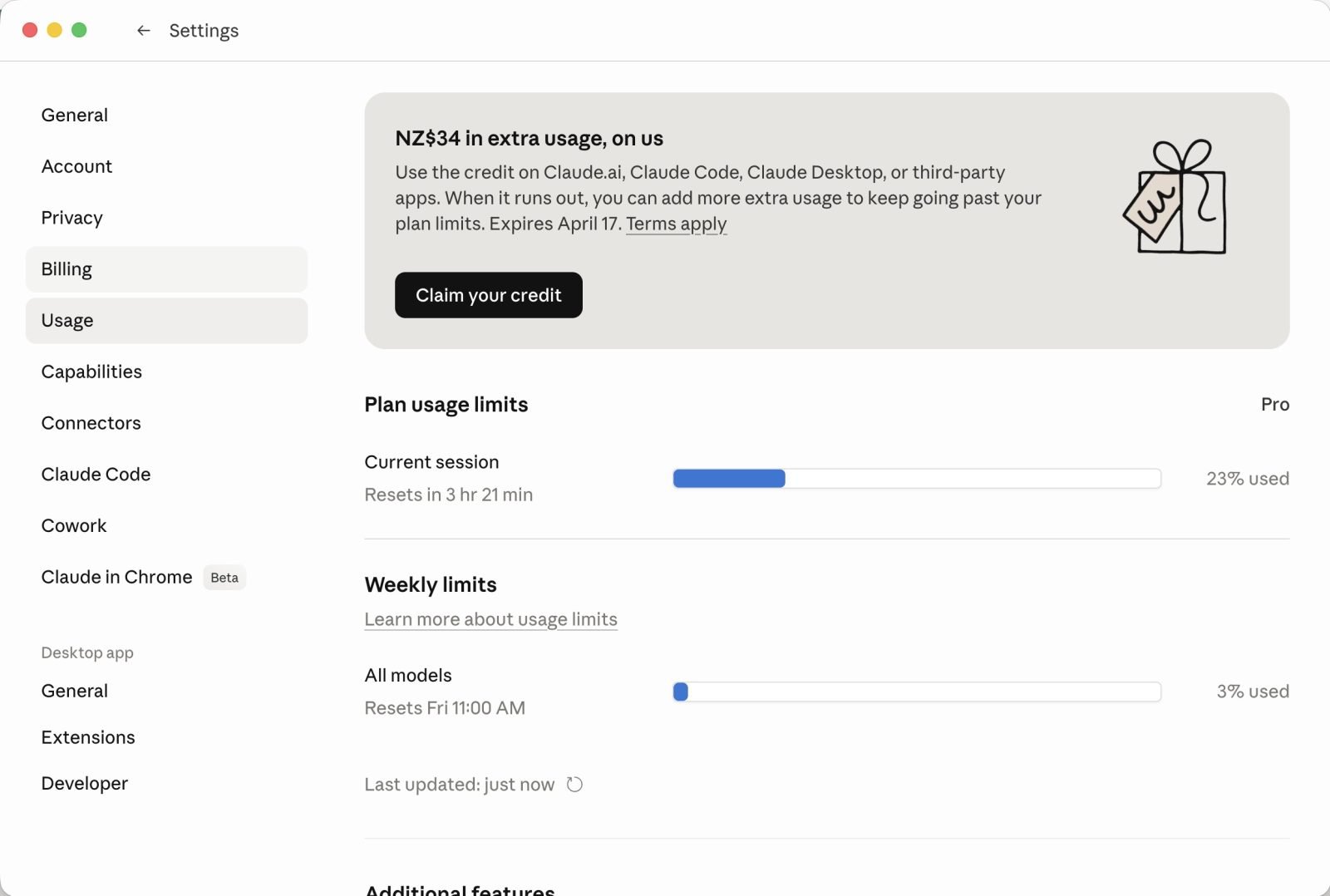
Tokens are words that are sent between you and the model, or used internally by the model in the agent workflow. Every single token consumes a certain amount of energy and compute, which is essentially what you are paying for when you are paying Entropic. The fewer tokens you use, the cheaper it will be. The model currently gives you a certain number of tokens per session (reset every couple of hours) and per week (reset every week). By going to Settings> Usage, you can keep an eye on how many tokens you have left.
Final Summary
Claude Code is an AI agent which differs from regular chat in that it can access your files and solve tasks through multiple steps. These steps can involve coding, searching files, reading files, and pretty much anything else you can imagine, resulting in a very powerful multi-purpose tool.
👉 Check out the AI Agents for Academics course if you want to learn how to build AI-powered workflows systematically using Obsidian + the latest plugins and frontier AI integrations.
Currently, a lot of its use cases can be done by specialised tools. For instance, if you want to analyse multiple papers, like in use case three, you could use Consensus. If you want to summarise your emails, some email clients, like Spark, already offer that functionality. If you wanted to rename your files, you could use a specific browser and specify the naming pattern, so the strength lies less in capability but more in generality. But Claude, code becomes a revolutionary technology if you:
- Use your own notes and data
- Consider use-cases requiring reading a lot of text and transforming it into summaries, tables, and syntheses
- Automate everyday tedium
- Use Claude to augment skills you aren’t good at (like coding)
Over time, you learn about more and more use cases and find ways in which Claude can enable you to do things that you haven’t even considered before.
I think it is worth joining in and exploring this technology, but don’t fall for the hype sometimes seen on social media. Yes, Claude is a powerful technology, but the vast majority of use cases are not that revolutionary (renaming files is cool, but you can do it; reading emails is cool, but you can do it). The real power will come from people finding new and innovative workflows which enable us to do something we haven’t been able to do before.
Most importantly, try not to outsource your cognitive sovereignty to AI, and use it to eliminate friction in your thinking rather than replace it.