Obsidian is a powerful note-taking tool that helps users organise their knowledge in a flexible and interconnected way. However, as your collection of notes grows, retrieving relevant information can become difficult. Traditional keyword searches won’t always surface the most useful results, and manually organizing your notes is a skill that takes time. Luckily, you can use AI to find notes faster in your Obsidian notes. We’ll look at this and the other AI integrations you can use with Obsidian.
Learn the foundational systems researchers are rarely taught: from powerful note-taking and knowledge management methods to modern lit review tools, ethical AI and productive research workflows.
Two AI-powered Obsidian plugins, Smart Connections and CoPilot, offer solutions to these challenges. These tools leverage semantic search and AI-assisted editing to help you quickly find, manage, and refine your notes with minimal effort. Smart Connections enables AI-powered note discovery, and CoPilot provides intelligent text modification, custom prompts, and vault-wide question-answering.
Obsidian Smart Connections – Finding Notes with AI
Installing Smart Connections
To get started, install the Smart Connections plugin from the Obsidian Community Plugin marketplace. After installation, the plugin will analyze the content of your notes and generate similarity scores to show how different notes relate to one another.

After installation, SmartConnections will index your vault. This is safe, secure and does not upload your notes to an external server (it will work offline as well). Check out below “How Smart Connections Works” below to understand what is happening under the hood.

Wait until this process is finished to continue using the plugin.
Finding Related Notes with Smart Connections
Smart Connections uses semantic similarity rather than exact keyword matches to connect ideas across your notes. For example, if you have detailed notes on Paper A, Smart Connections will find other relevant notes you’ve written, even if they don’t contain the exact same words. This makes it easier to discover meaningful relationships between different pieces of information.
Open a note and then open the smart connections sidebar (new icon on the left) to get a collection of similar notes:
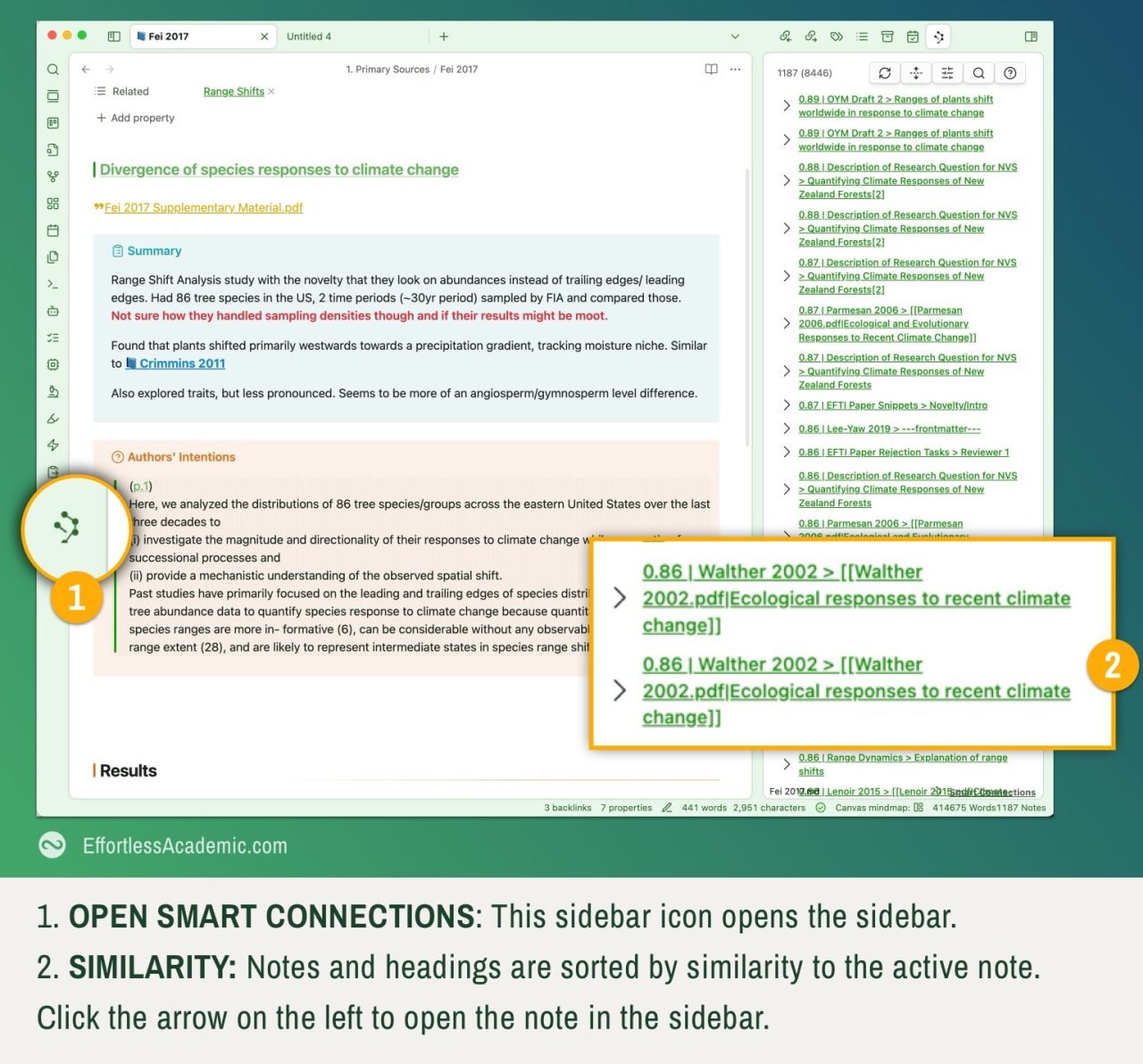
Each related note is assigned a similarity score between 0 and 1, where a score closer to 1 means the notes are highly related. This is very useful if your notes are all of a specific type; for example, they are all papers, and you want to find similar papers. In this screenshot, I have discovered a paper by Walther 2002 which deals with “Ecological Responses to Climate Change”, while the open paper by Fei 2017deals with “Divergent responses of species to climate change” – Similar but not obvious. This is the power of semantic similarity.

Semantic Search inside your notes (aka Smart Lookup)
Smart connections can find similarities not only between two notes but also between a note and a query – after all smart connections uses AI to compare text to text and it doesn’t matter how short or long these texts are. In this example, I will look for “Studies that deal with range shift abundance changes”, which is vague and would not return any hits using the text search but finds the Fei 2017 paper using AI.
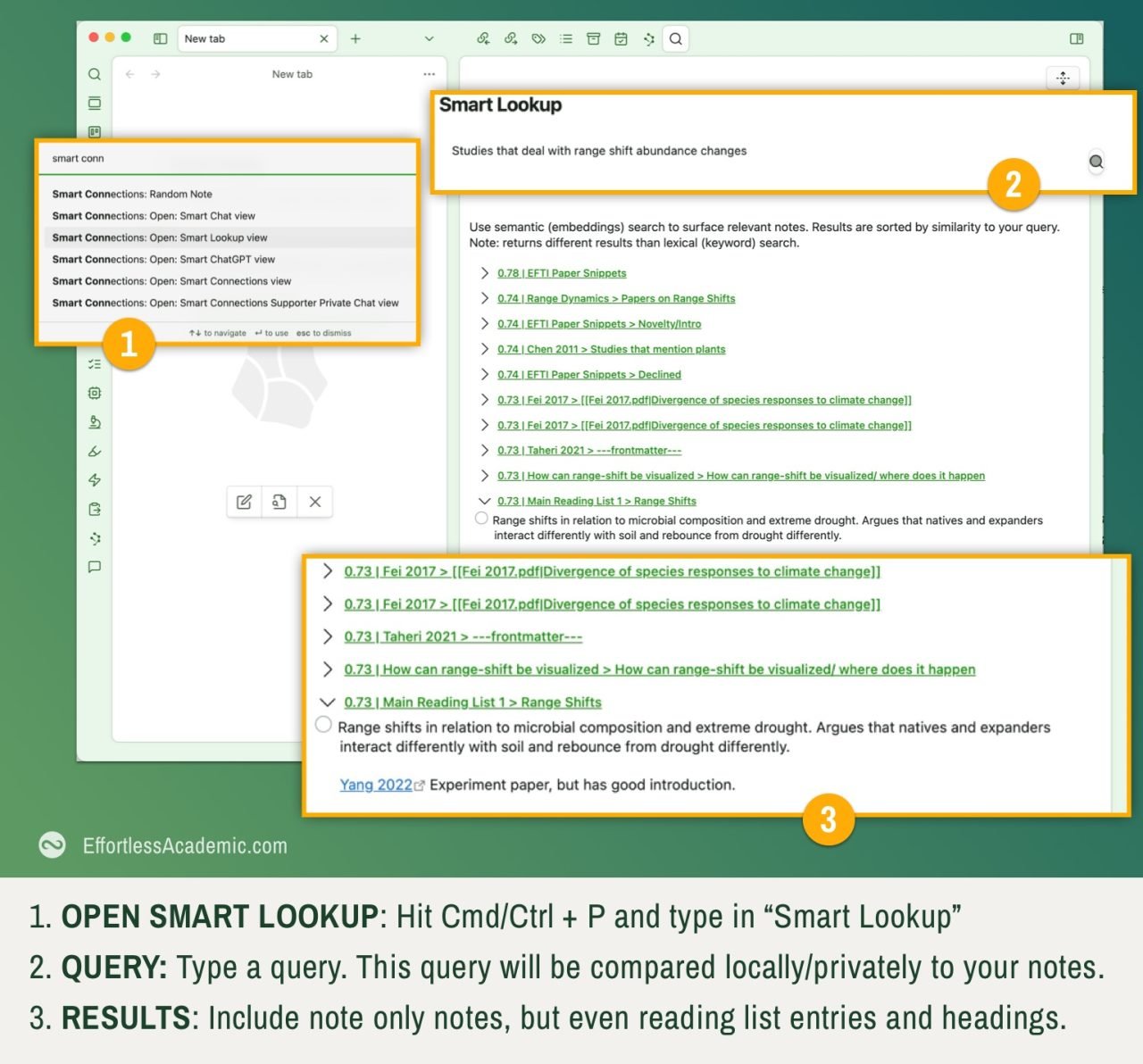
The key study Fei 2017 comes up, but also some small note snippets where the idea of “range shift abundance changes” is mentioned. For example, I like to keep a reading list to speed up my literature review, and these entries show up too.
It is also remarkable that all of this works offline on your local computer and is blazing fast. This has to do with the way Smart Connection Works, allowing for private and fast AI interaction.

How Smart Connections Works
Smart Connections operates by creating local embeddings of your notes. Think of an embedding as a map of meaning, where each note is placed in a landscape based on its content. Instead of relying on exact words, Smart Connections determines how close two ideas are by measuring the “distance” between them on this map.
This allows us to measure Note-to-note or Query-to-note similarity, enabling the two features described above. If two notes are placed near each other on the map, they are closely related, even if they don’t share exact words.
Because this map is built entirely on your device using only simple AI models, no information ever leaves your Obsidian vault. Unlike cloud-based AI tools that send data to external servers, Smart Connections ensures your notes remain private and secure while still benefiting from AI-driven organizations.
Obsidian CoPilot – Chat with Your Notes
Smart Connections is great for discovering related notes and surfacing hidden connections, but it doesn’t help much when it comes to refining your writing or having full-on conversations with your notes. This is where Obsidian CoPilot comes in—an AI-powered assistant that not only helps you edit and improve your notes but also allows you to interact with them through intelligent chat and custom prompts.
Using CoPilot in this way requires an API Key and will cost a small amount. Read “How to get an API key” below, if you don’t know what this means. Get your API key and come back here to continue the tutorial.
Installing Obsidian CoPilot
To install Obsidian CoPilot, navigate to the Community Plugin marketplace and install the plugin.

After installation, you will need to enter an API key from OpenAI or another supported AI provider to enable its features. Read “How to get an API key” to get one. Treat you API key confidentially, like a password.

AI-Assisted Editing with CoPilot
One of CoPilot’s most powerful features is its AI-assisted text modification, which integrates directly into Obsidian’s interface. Users can select any piece of text, right-click, and choose from several AI-powered editing options:
• Summarize – Generate a concise summary of long notes
• Shorten – Make text more direct and to the point
• Expand – Add depth and context to ideas
• Fix Grammar – Improve clarity and readability
• …and many more.
Select a text and right-click it to use CoPilot:

Alternatively you can select a text, hit ctrl/cmd+P and type in “Copilot” to get all the 10+ built-in options to work with text.
These features allow you to polish your notes quickly and transform texts into bullet points or vice versa. The bullet point approach is particularly useful when you want to write your first manuscript using AI.
Custom Prompts in CoPilot
Beyond its built-in editing functions, CoPilot allows users to create custom AI prompts. These prompts are saved as Obsidian notes with placeholders, meaning you can apply them to different pieces of text as needed. For example, you can create a custom summarization prompt that reformats raw meeting notes into structured action points with predefined headers. Here are the placeholders you can use:
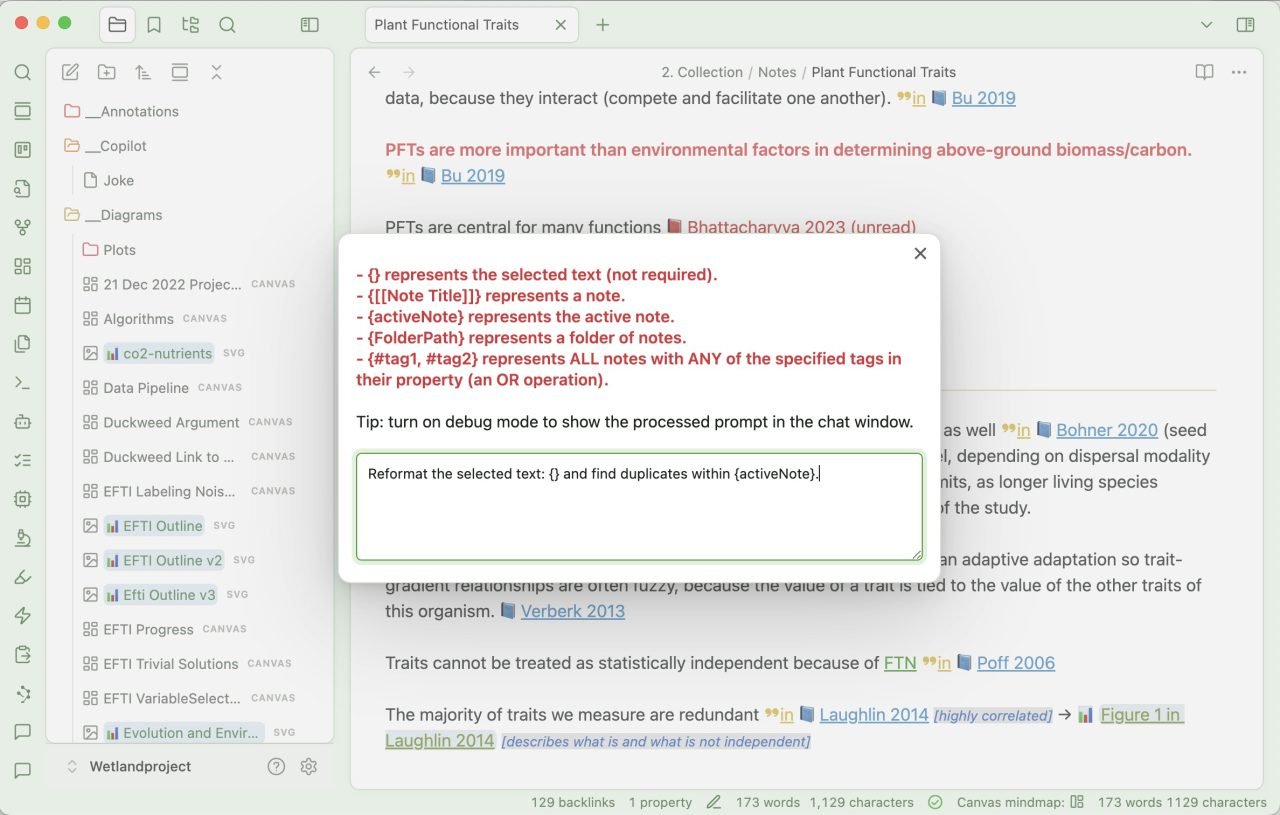
You can use this to do anything you would do normally inside ChatGPT, but directly in Obsidian.
CoPilot Vault QA
One of the most powerful features of CoPilot is Vault Q&A. This tool indexes all your notes and enables semantic search, similar to Smart Connections. The first time you use Vault Q&A, it will process your entire vault to build a searchable index.
This is especially useful for users whose notes contain unique insights that are not found elsewhere. By leveraging your own notes as a knowledge base, CoPilot ensures that AI-generated responses are grounded in your personal data rather than generic web-based sources. Open the CoPilot by using cmd/ctrl+P and select Copilot Chat. You can also find the icon in the sidebar if you prefer.

Notice that the reply contains links to my notes. The prompts, too, can contain links to notes. If you are a pro-subscriber to Copilot, you will be able to include PDFs in your search as well. The future of academic research will lie in our ability to combine our notes and personality with the right sources, first the PDFs we downloaded and later likely the entire internet.
CoPilot Chat
There is a less search-intensive, faster option to interact with Obsidian Copilot, called “Chat”. The difference between “vaultQA” and “chat” modes generally pertains to how they interact with your notes and the type of assistance they provide. It is cheaper to use Chat, as less data is uploaded to the LLM:
VaultQA is specifically designed to search and retrieve information from your Obsidian vault. When you use vaultQA, it looks through your notes to find relevant content based on your query.
Chat mode is more conversational and is used for general inquiries, explanations, or assistance that may not necessarily require searching through your vault.
However, in both cases, you may add links to your notes to provide more context for your query or to ask the AI to compare certain notes.
Obsidian Smart Connections vs Copilot
Copilot is a more polished plugin compared to Smart Connections, but they do have different use-cases. Smart Connections is free, offline and ideal for finding related notes extremely quickly using its semantic search. CoPilot can edit your notes and upload your notes to powerful language models for in-depth search and processing. This costs money and can be slower, yet produce better results.
You can use both for your work and find use-cases where one is excels over the other for you.
How to get an API Key
If you choose to use CoPilot, you will need an API key from providers such as OpenAI or Anthropic. Imagine the LLM as a powerful cloud computer and the key as a ticket you will need to access it. Since the key is unique, it will also track how much you are using the LLM and bill you accordingly. The key itself is just a string of characters, that you need to keep secret, like a password.
To get an API key, follow these links:
• Google AI Studio (for Gemini)
Once you have the API key, do not share it with anyone and paste it into the settings of the plugin.
How much does it cost to use Obsidian AI plugins?
It can be confusing, but often, the access to the LLMs in the web browser is paid for separately from the so-called API access for which you need the API key described here. Web Browser access is available for free to some extent, while API use always costs a small amount per word.
API costs vary by provider and model. OpenAI, for example, charges $0.01 per 1,000 tokens for GPT-4o usage. Keep an eye on how much you spend by visiting the usage dashboard, here you can set monthly limits on spending, as well:
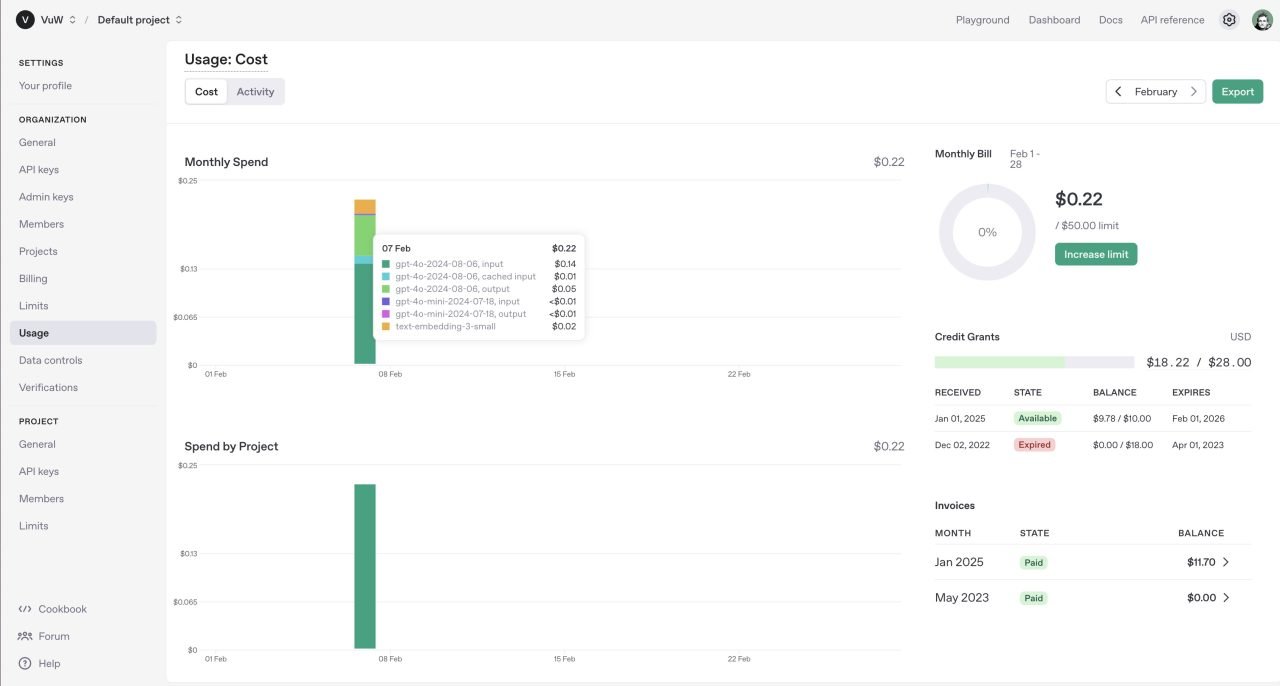
To control spending, CoPilot allows users to set a token limit under Settings > CoPilot > Model > Token Limit. You can switch to a less powerful model to reduce the price as well.

Using ChatGPT, Gemini, Claude inside Obsidian for free
Since Obsidian 1.8.4, users can access any website inside Obsidian. This allows you to open the ChatGPT inside Obsidian. It will not be connected to your notes or know anything about them, but you can copy and paste more easily since you don’t need to switch to a browser.
To enable WebViewer go to Settings > Core Plugins > Web Viewer and enable it. Now every link you open from Obsidian will open within Obsidian and not in the browser. Use Cmd/Ctrl + P and select “Web Viewer: Open Web Viewer” to navigate to the LLM of your choice. Login to your account and pin the note:

Summary
The two AI-powered plugins: Smart Connections and CoPilot greatly enhance the Obsidian experience, making it easier to find, organize, and refine your notes. This is just the start of a new era of AI linking to your personal thoughts and helping you create content truthfully and effortlessly.
• Smart Connections is best for semantic search and note discovery. It’s free and can work offline really fast but is limited to finding similar notes. (It can do other things, but the implementation is poor.)
• CoPilot excels at AI-assisted editing and vault-wide Q&A. It’s a premium solution that will require to pay a little bit of money to access the language model of your choice.
Integrating these tools into your workflow can unlock new insights and optimise your personal knowledge management.
Want to learn more about accessing and using your notes more productively? Check out my free note-taking course, which walks you through the basics of getting the most of out Obsidian for academic research.